
If you realize an error was made on your online statements, you can choose to Retract All Published statements and fix the error. When you retract a statement, the donor will no longer be able to view this statement from their Engage account.
-
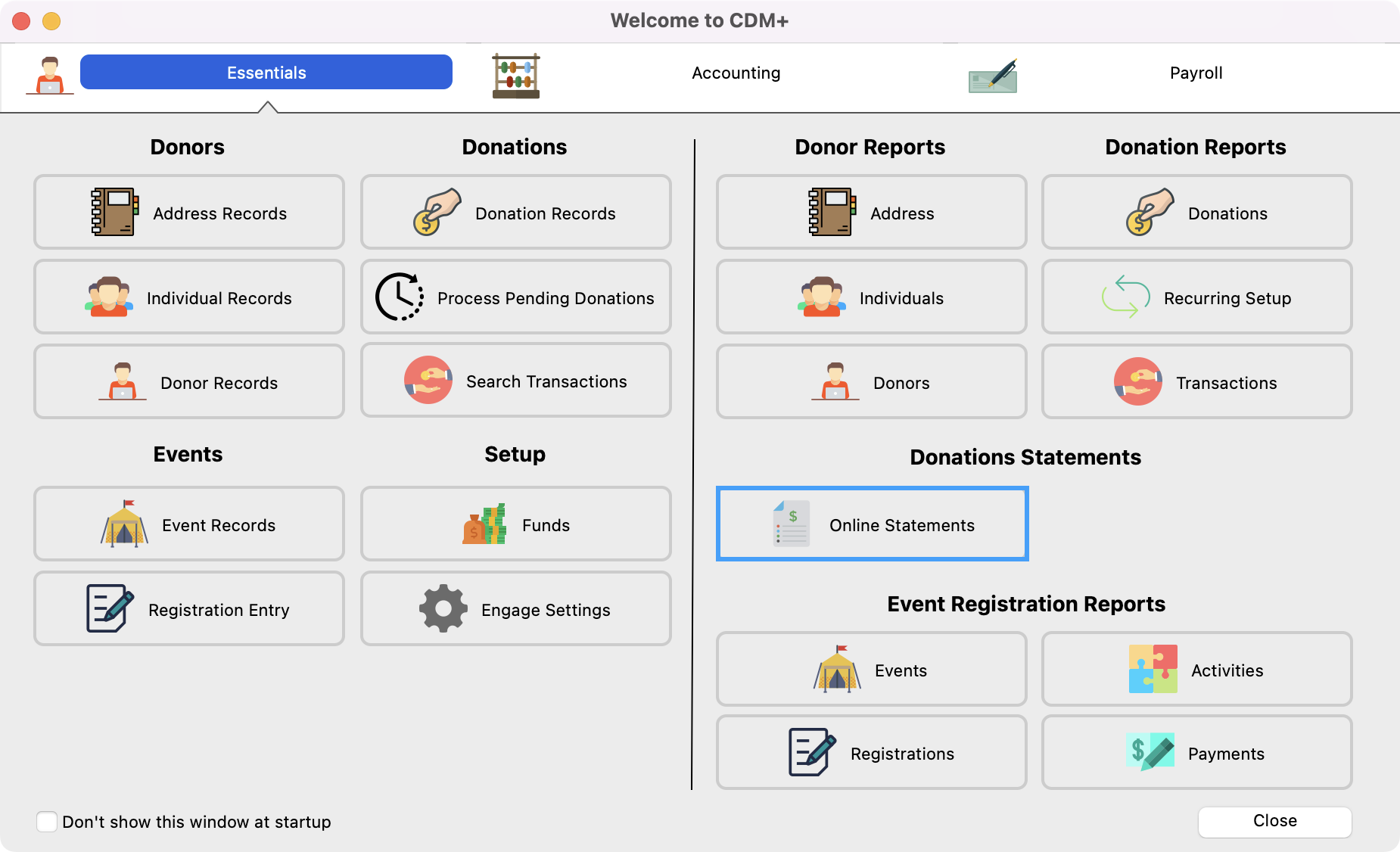
From the Welcome to CDM+ window, click on Online Statements.
-
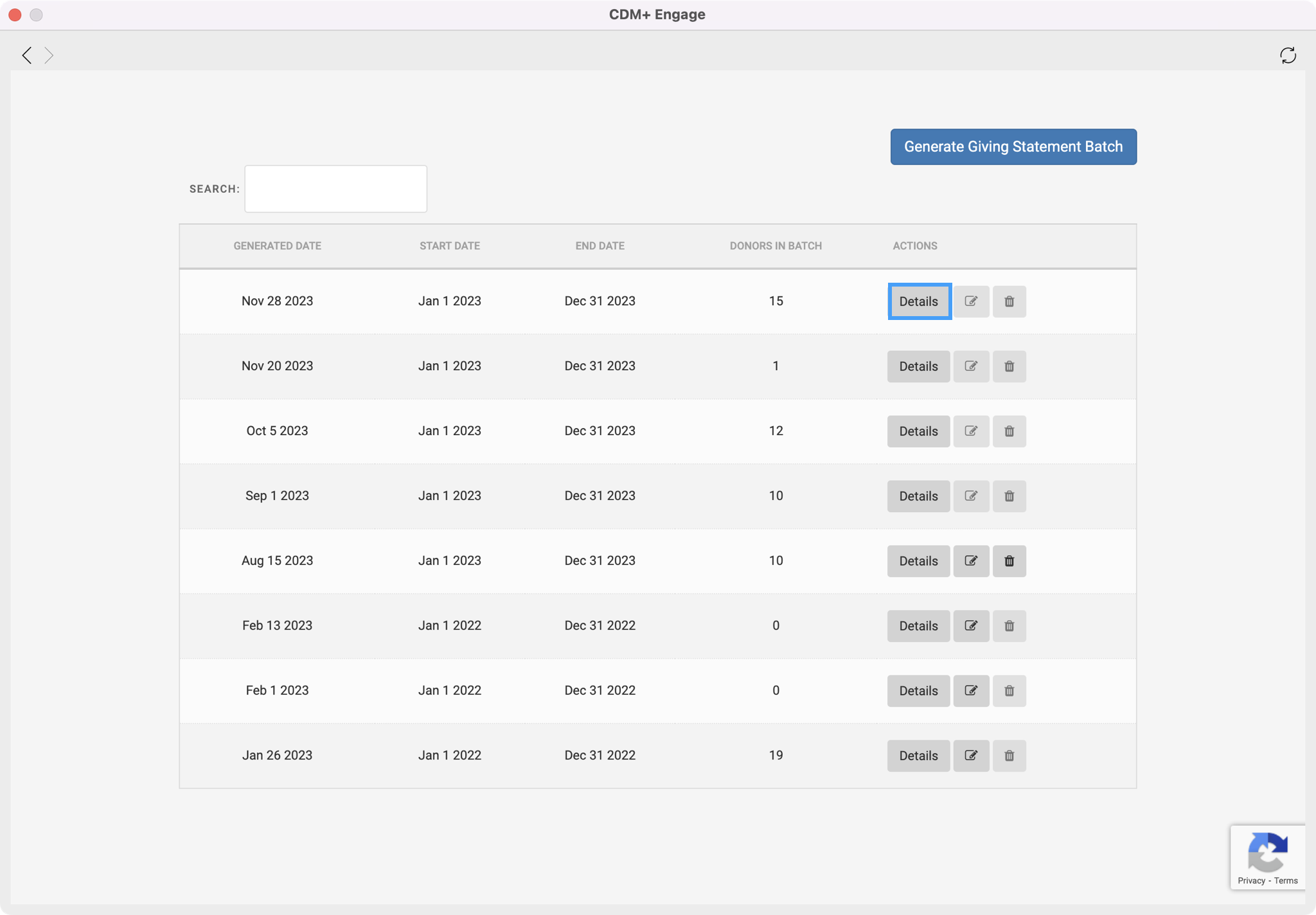
On the Giving Statement Batch Dashboard, click on Details next to the statement batch you want to retract.
-
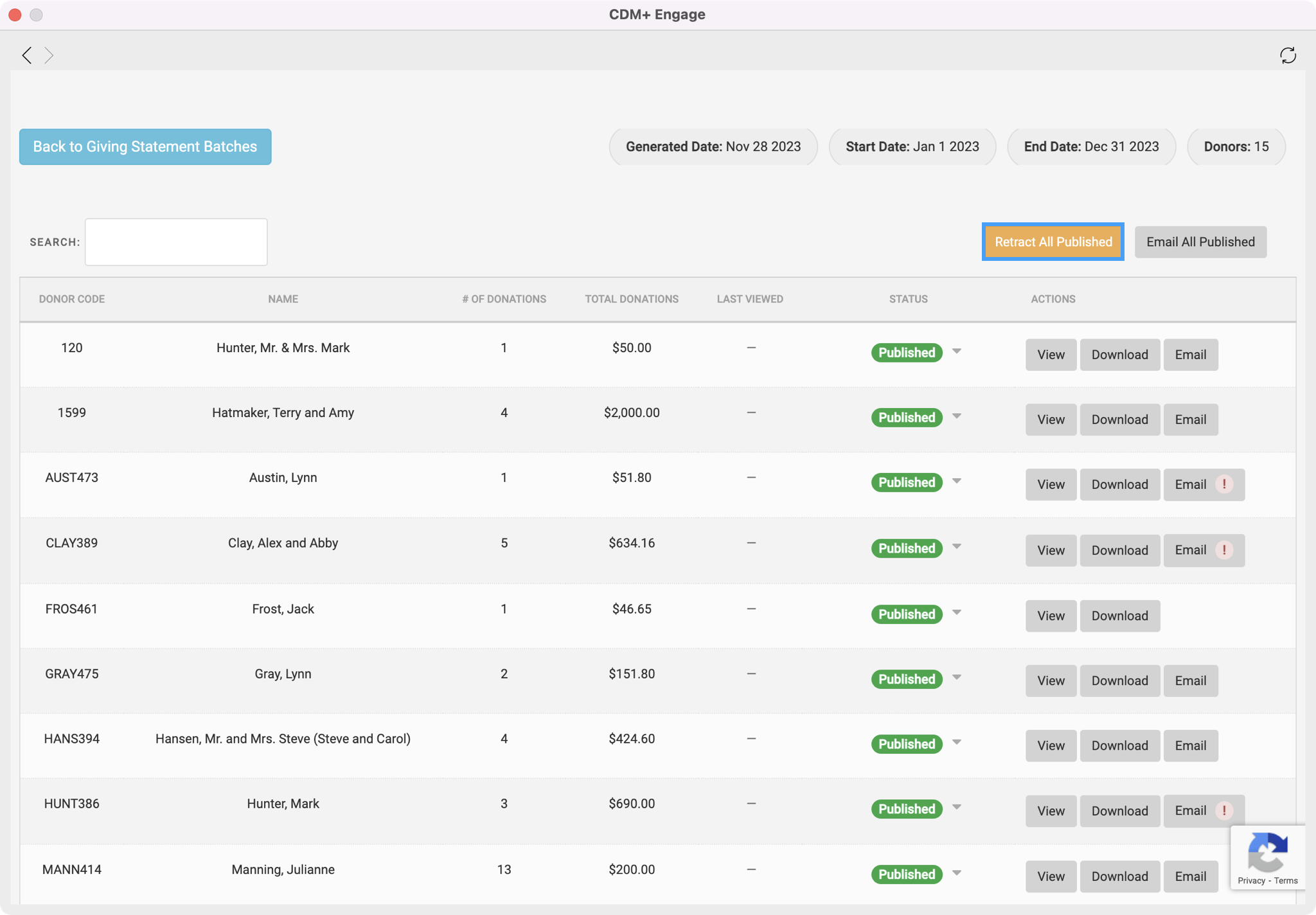
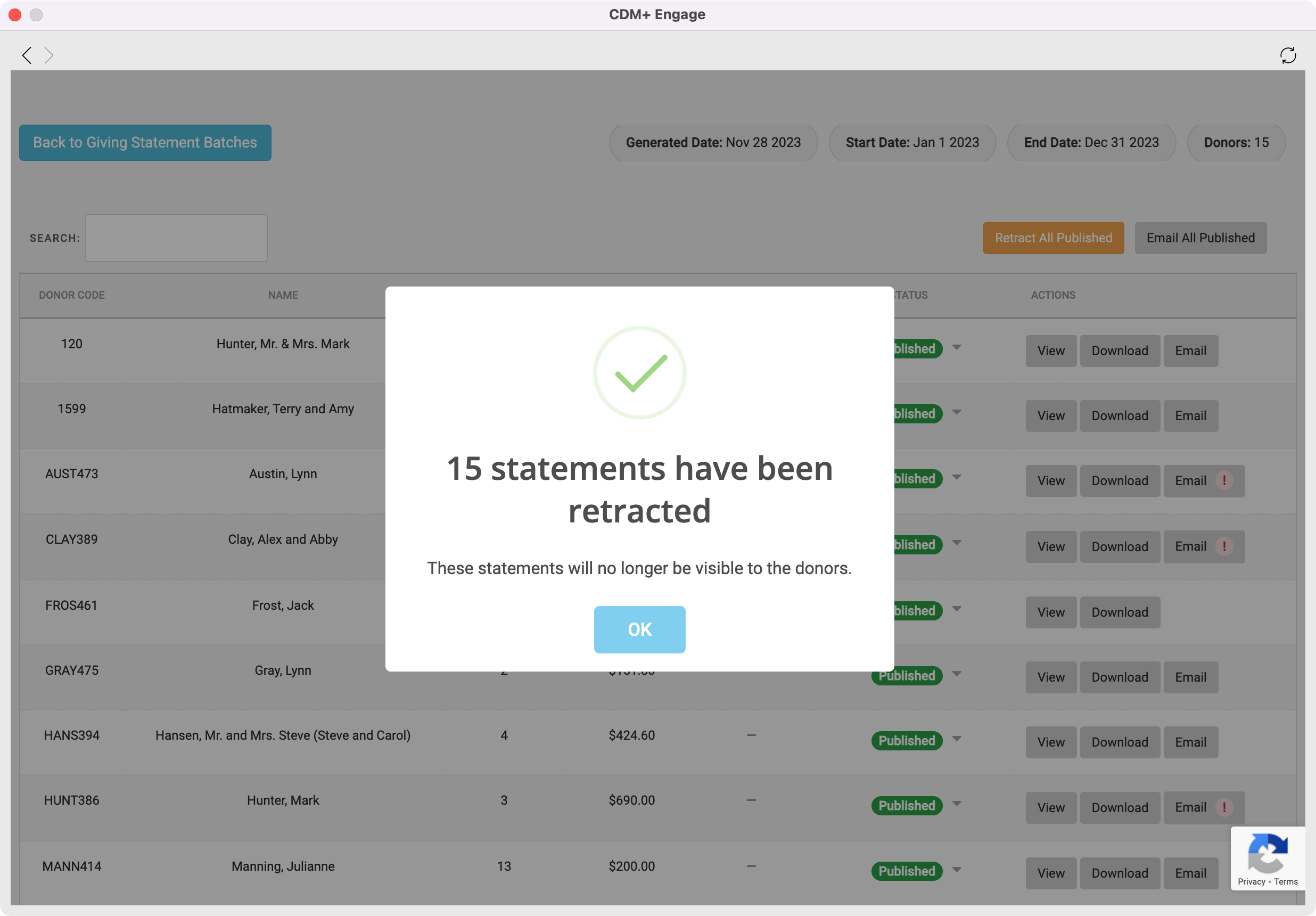
To retract all the statements in a batch, from the Batch Details page, click on the orange Retract All Published button.
-
You will then get a pop-up box letting you know the statements have been retracted and are no longer visible to your donors. Click on OK.
-
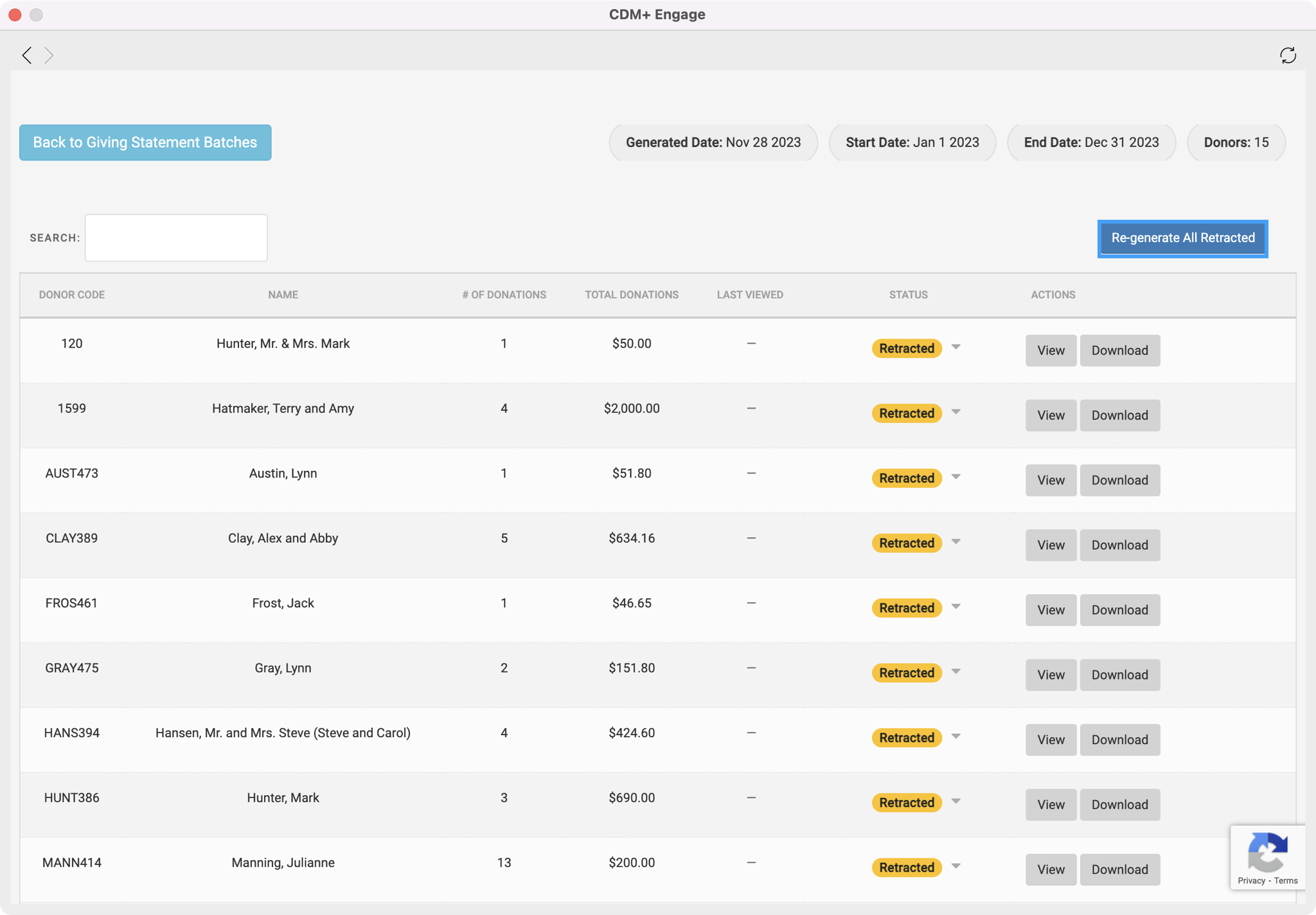
Once you fix any errors that need to be updated, you can then click on the Re-generate All Retracted button.
-
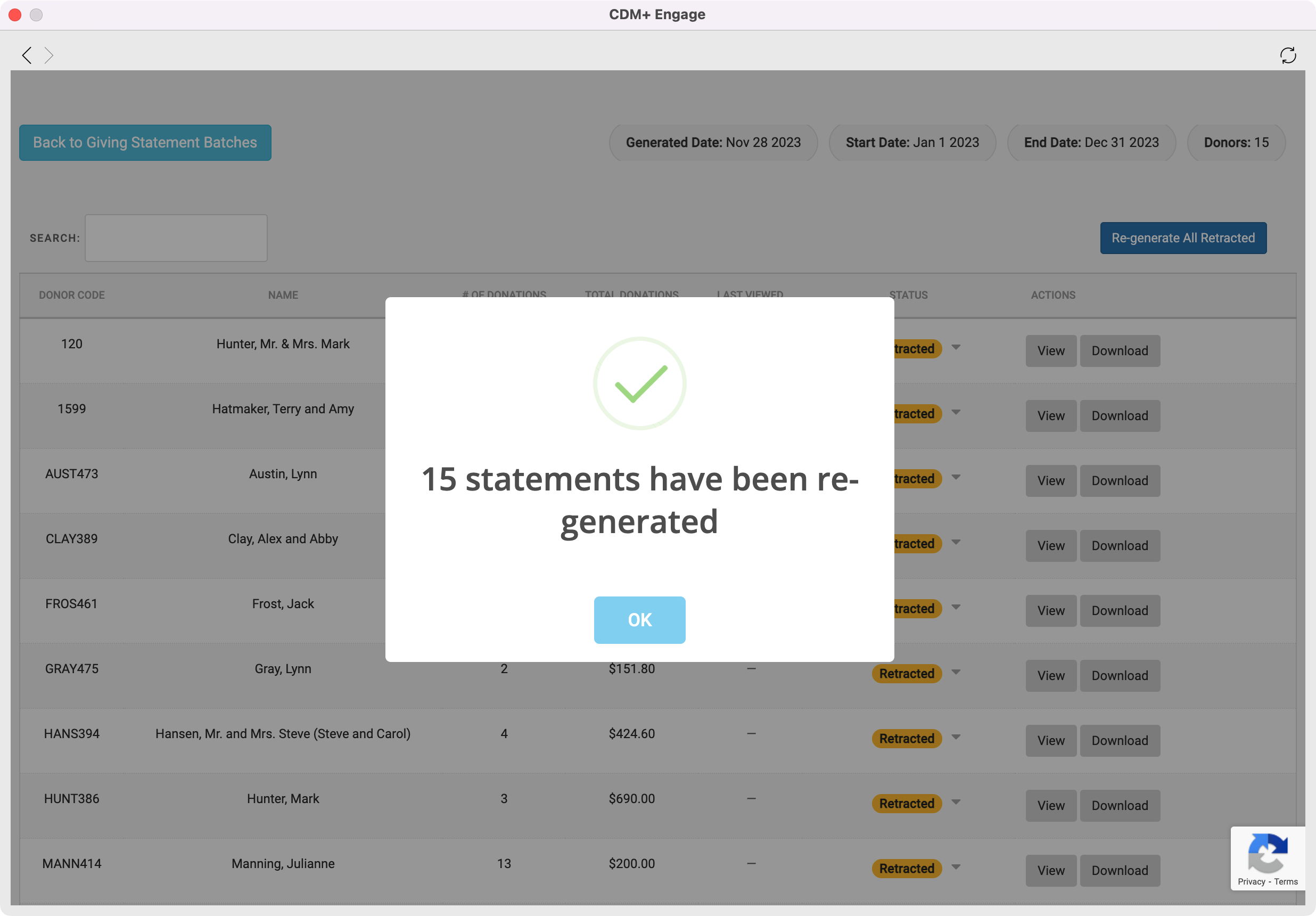
You will then see a message letting you know your statements have been re-generated. Click on OK.
-
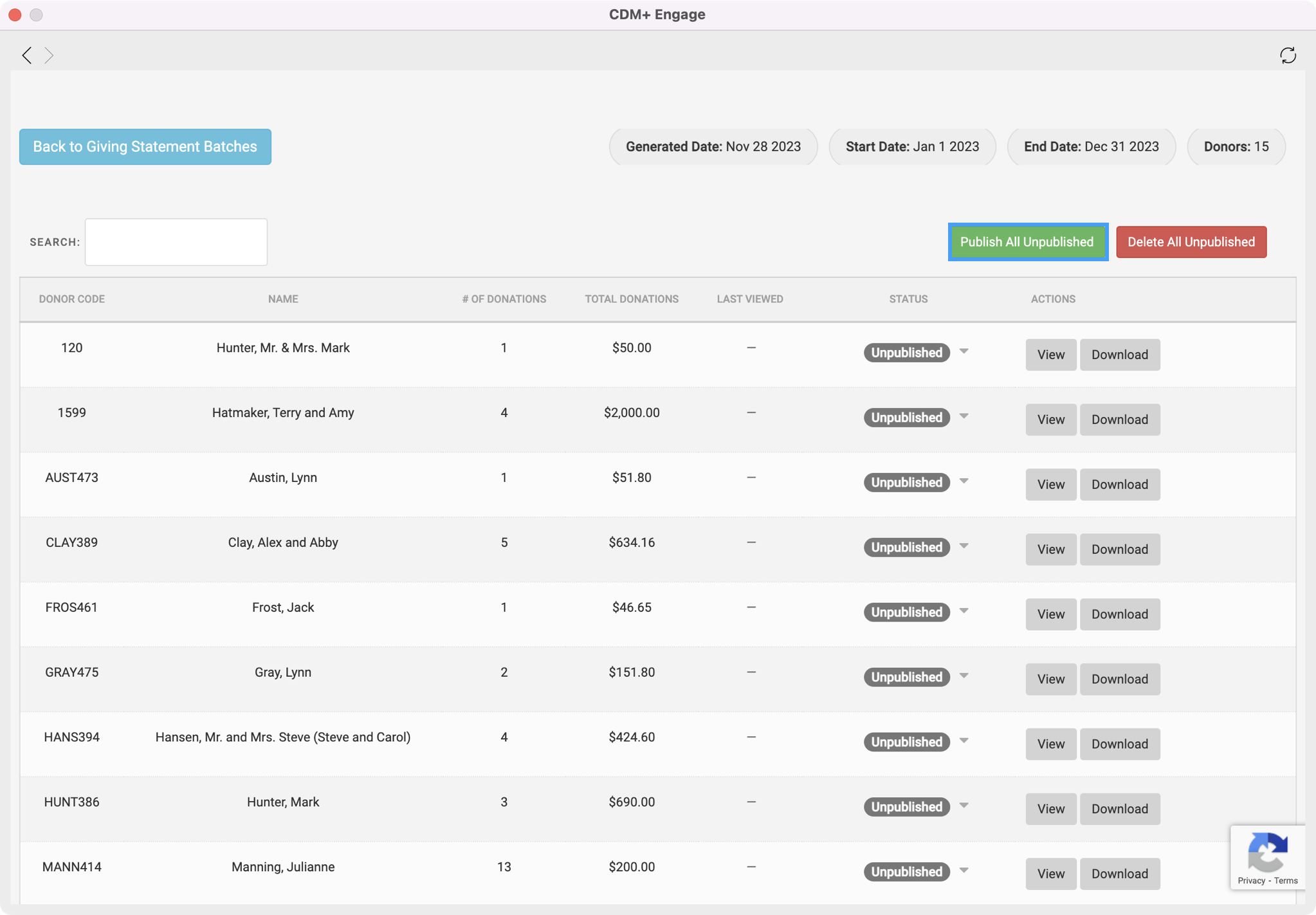
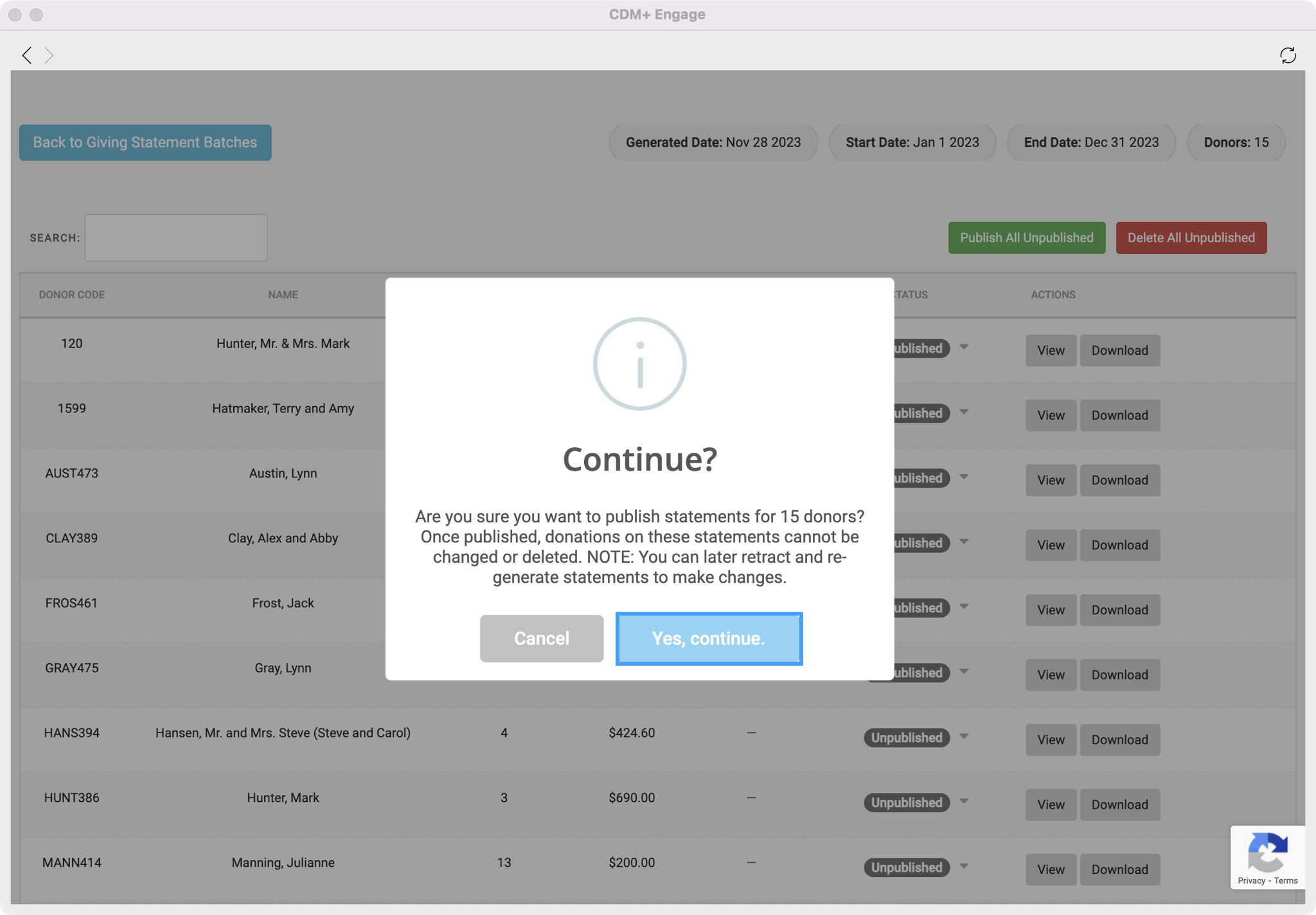
Then, click on Publish All Unpublished to make the statements visible to your donors again.
-
You will then see a pop-up box asking if you want to Continue with publishing your statements. Click on Yes, continue.
-
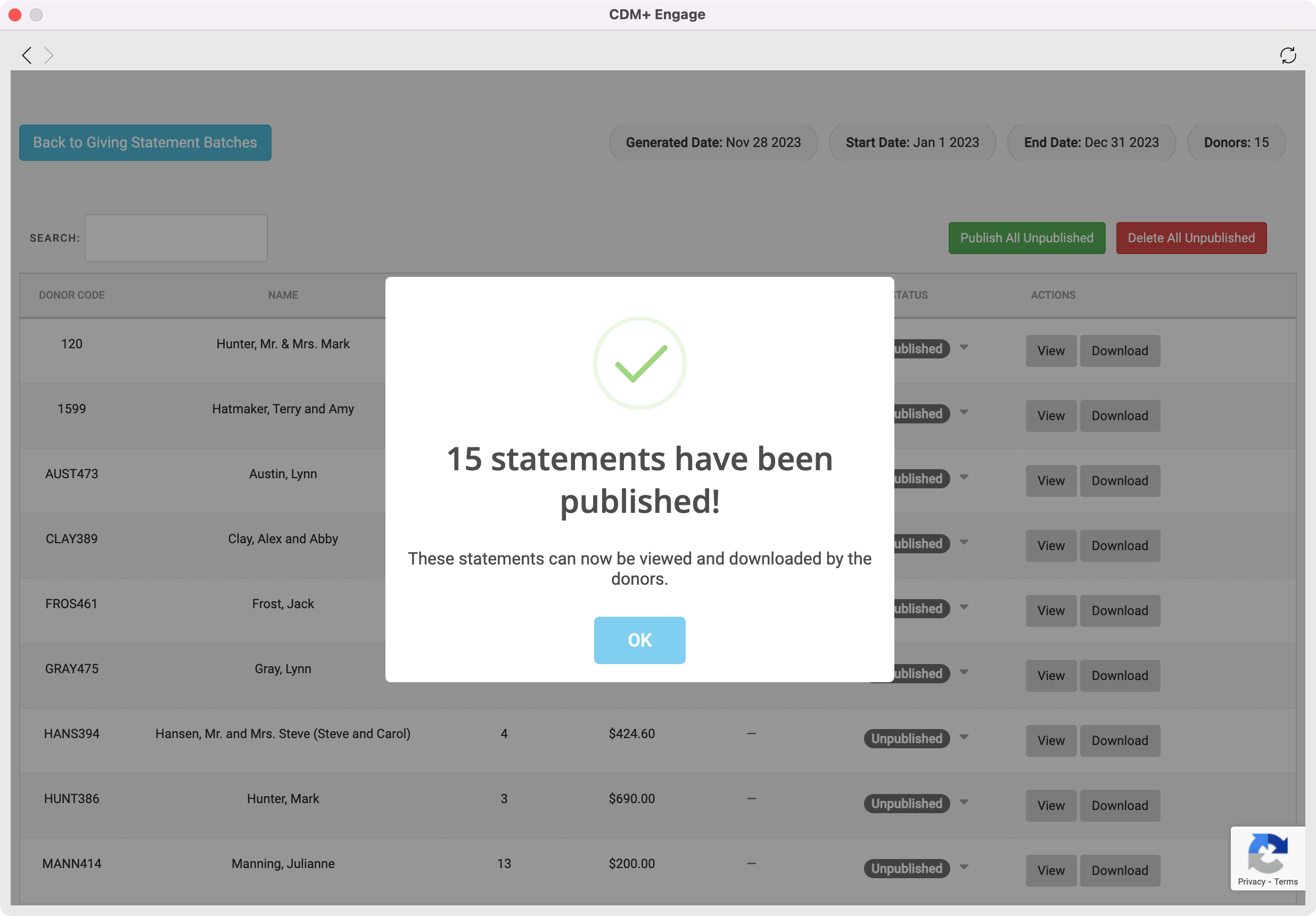
You will then see a pop-up box letting you know your statements have been published and are now visible to your donors. You can then continue to email your statements.