

Please note that you cannot issue a refund until it has finished processing. Once a transaction has a "Cleared" status, you can issue a refund.
-
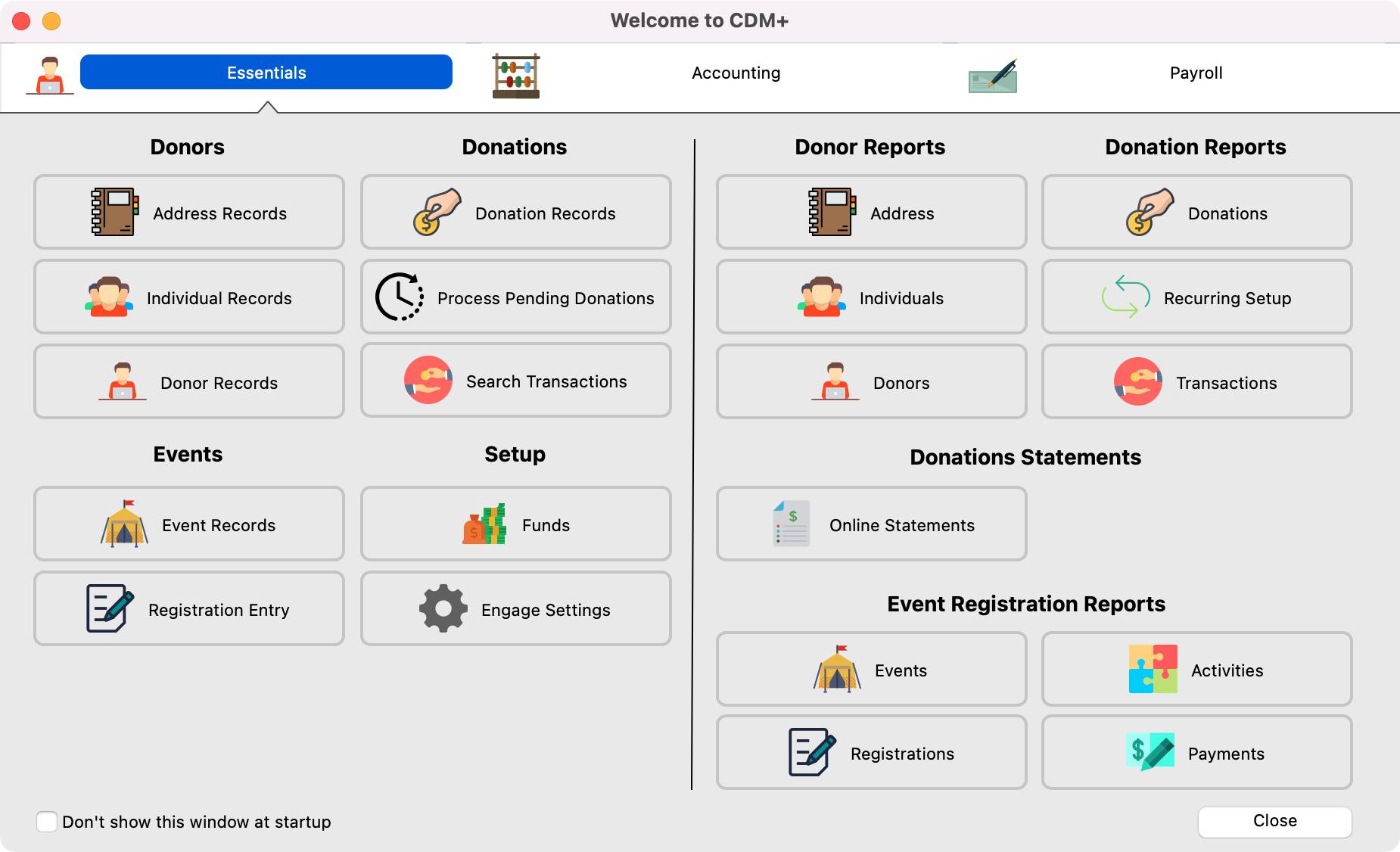
From the Welcome to CDM+ window, click on Search Transactions.
-
Next, enter in the date range for the transaction you wish to refund and click on Search.
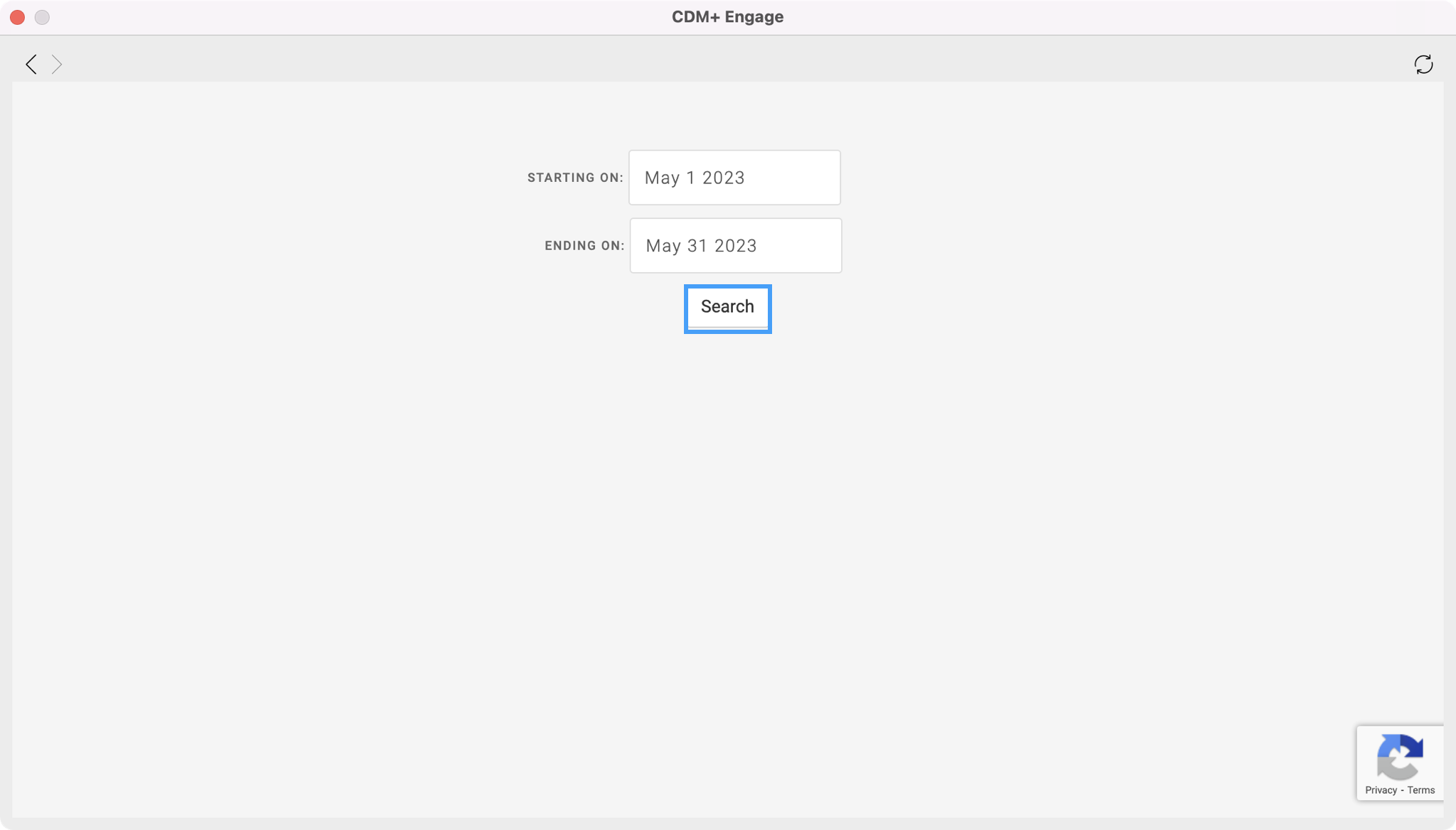
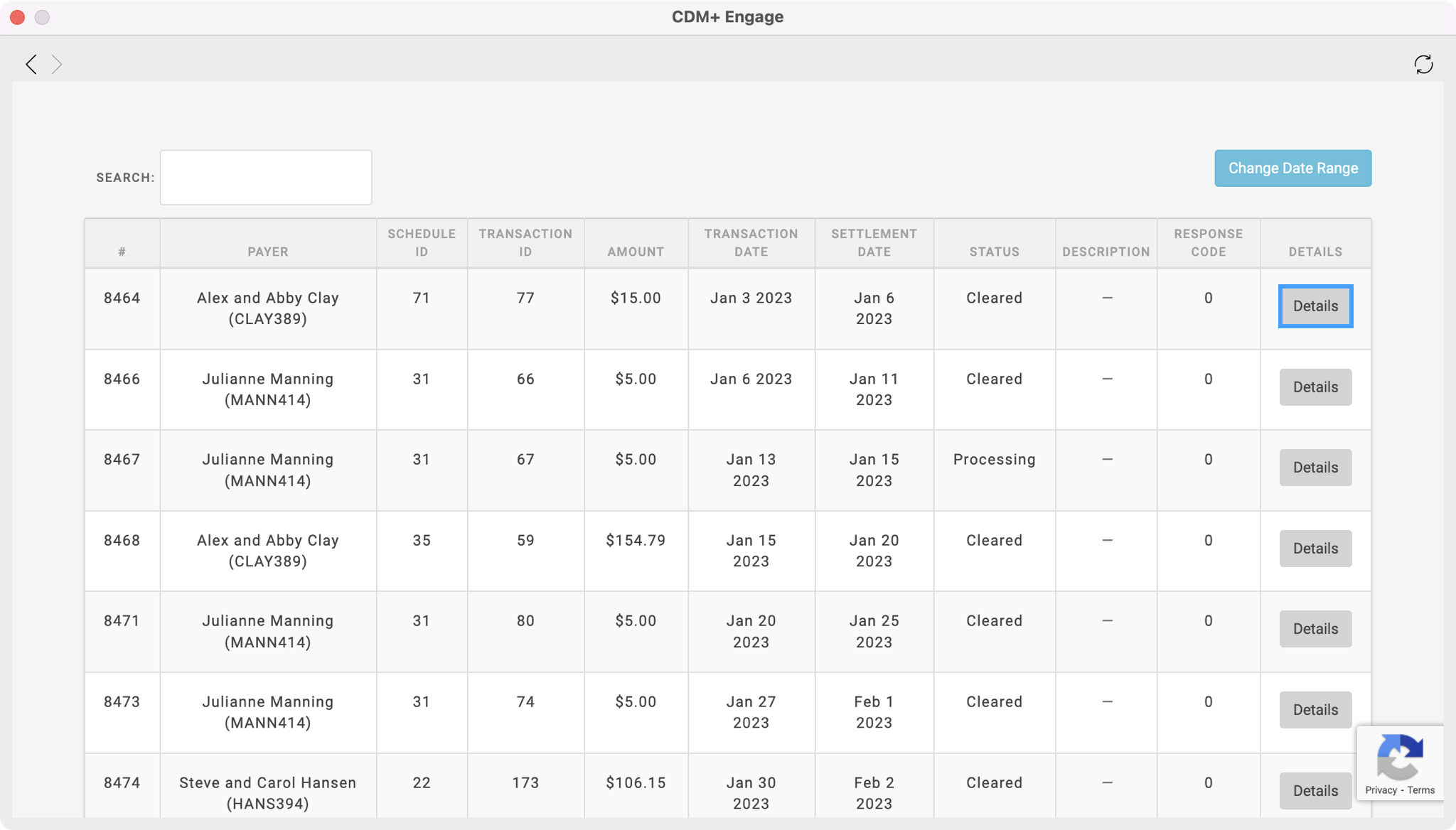
If you widen out the next window, you will be able to see more of your transactions in list form which allows you to see more details at once.
-
Locate the transaction that needs to be refunded and click on Details.
-
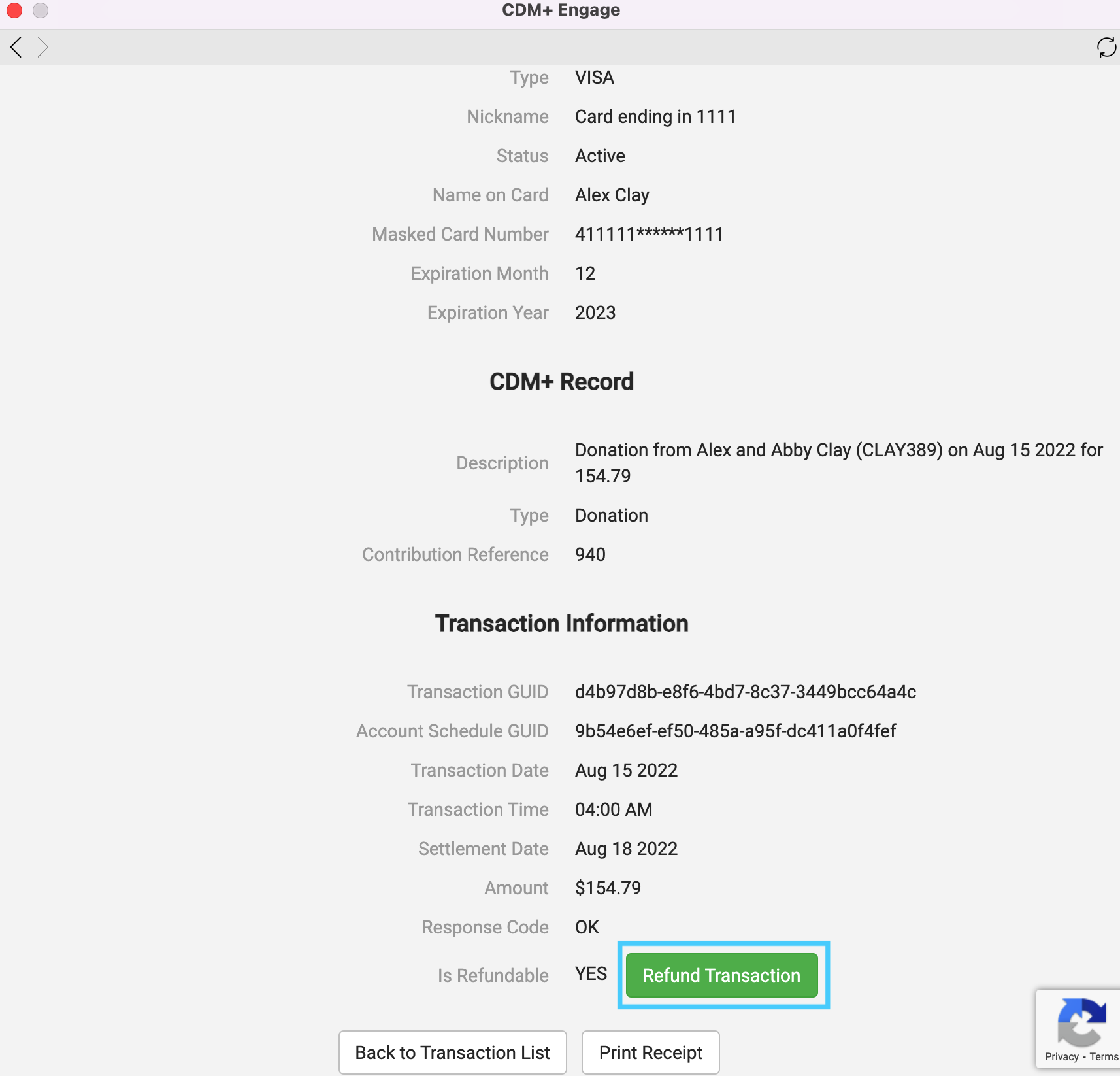
On the next page, scroll down to the bottom and click on Refund Transaction.
-
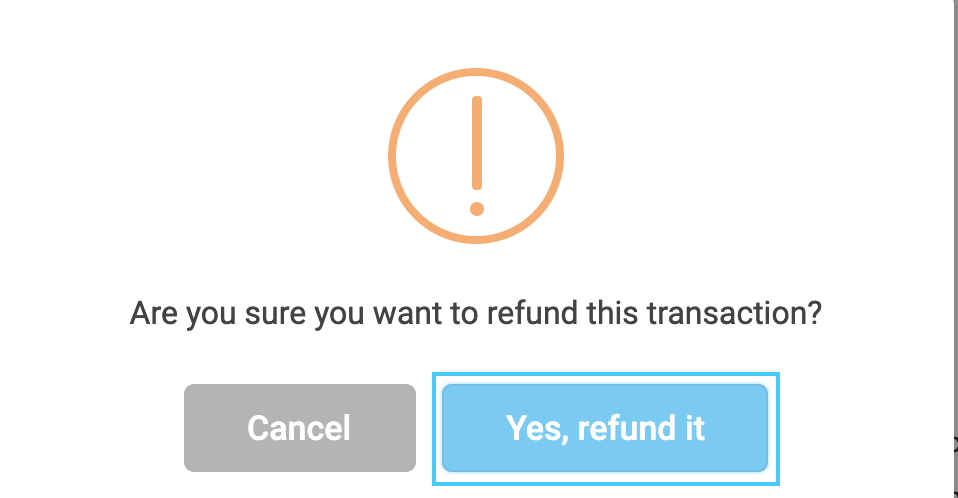
You will see a pop-up box asking you if you are sure you want to refund the transaction. Click on Yes, refund it.
-
Transaction fees will occur on the refund for the same amount as the original transaction.
-
Transactions made over 120 days prior to today's date will not be refundable
Related Articles Page: Transaction Report Custom Listing and Export Report (Contributions) transactionscustom_listing_reportsessentials_reports Page: How to Create A Transaction Report (CDM+ Essentials) transactionscustom_listing_reportsessentials_reports Page: How to Utilize Search Transactions (CDM+ Essentials) transactions Page: How to see Declined Transaction in Search Transactions (CDM+ Essentials) transactions Page: How to Issue a Refund (CDM+ Essentials) transactions Page: How to Create a Status Transaction Report (CDM+ Essentials) transactions