
-
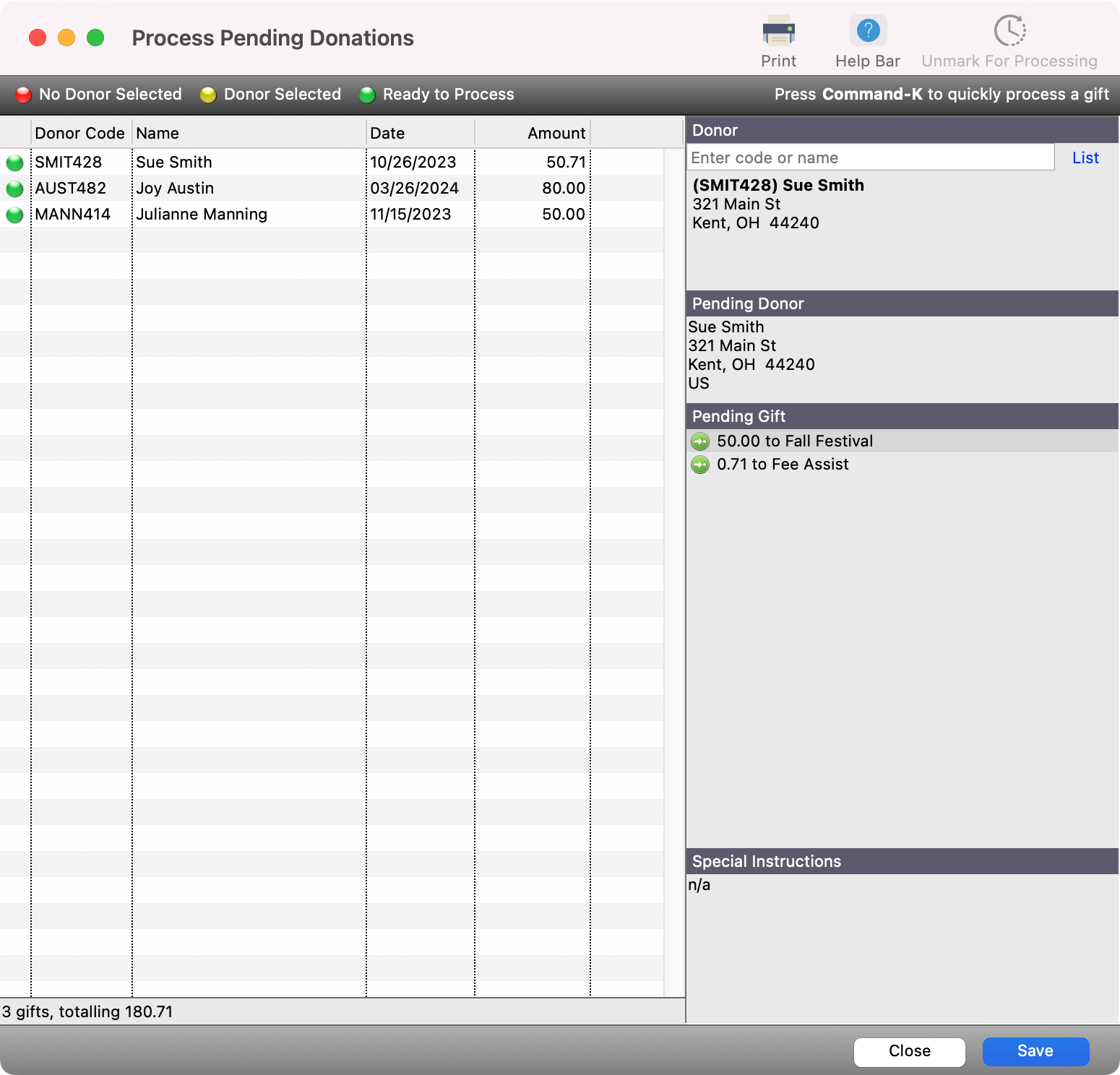
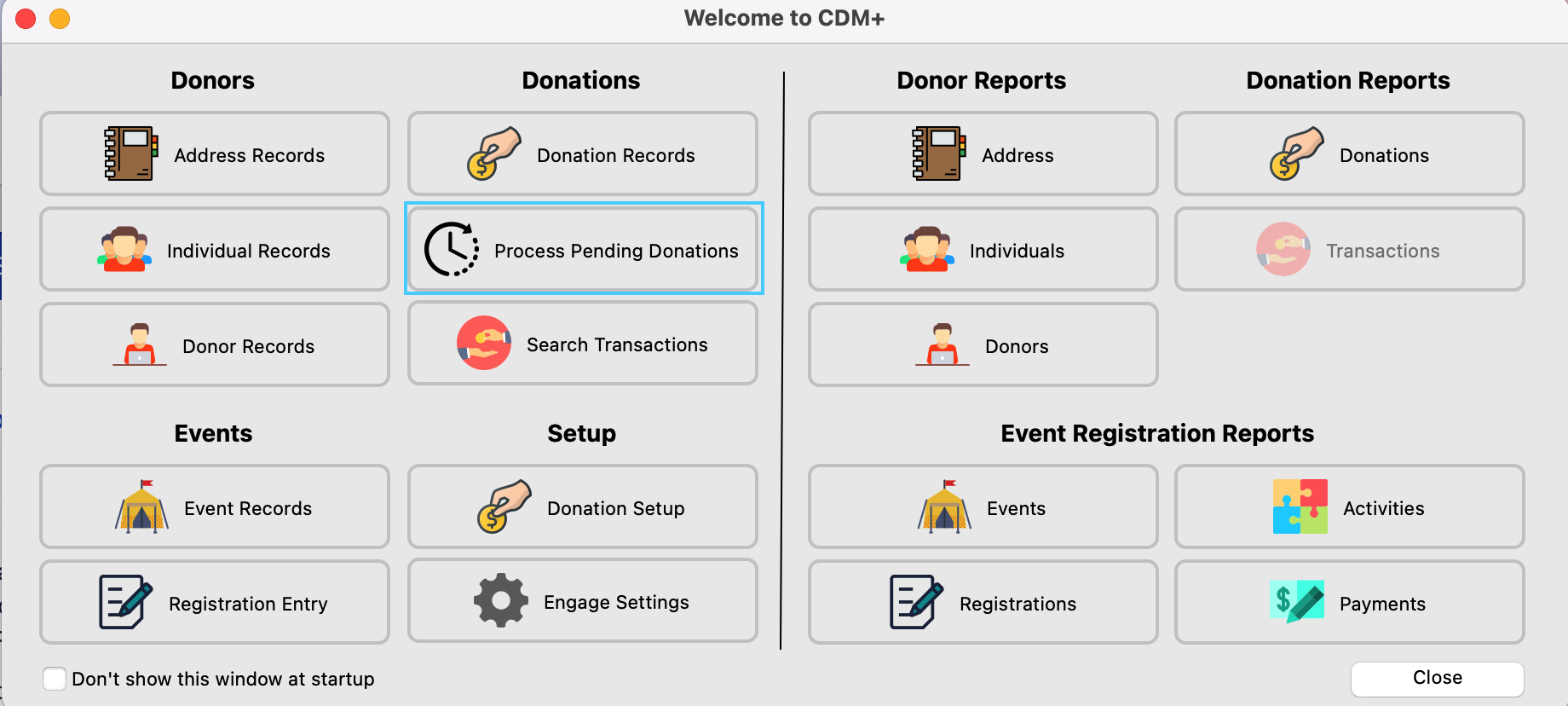
On the Welcome to CDM+ window, click Process Pending Donations.
-
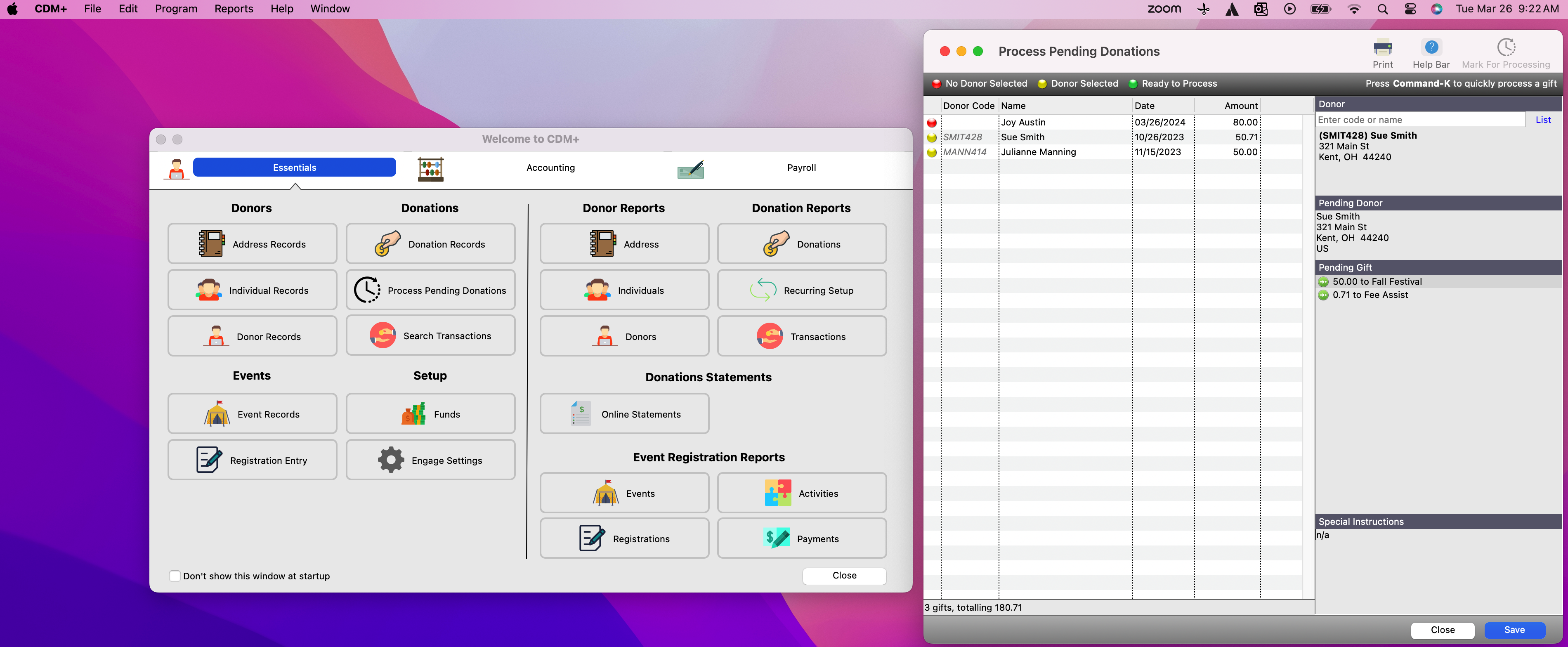
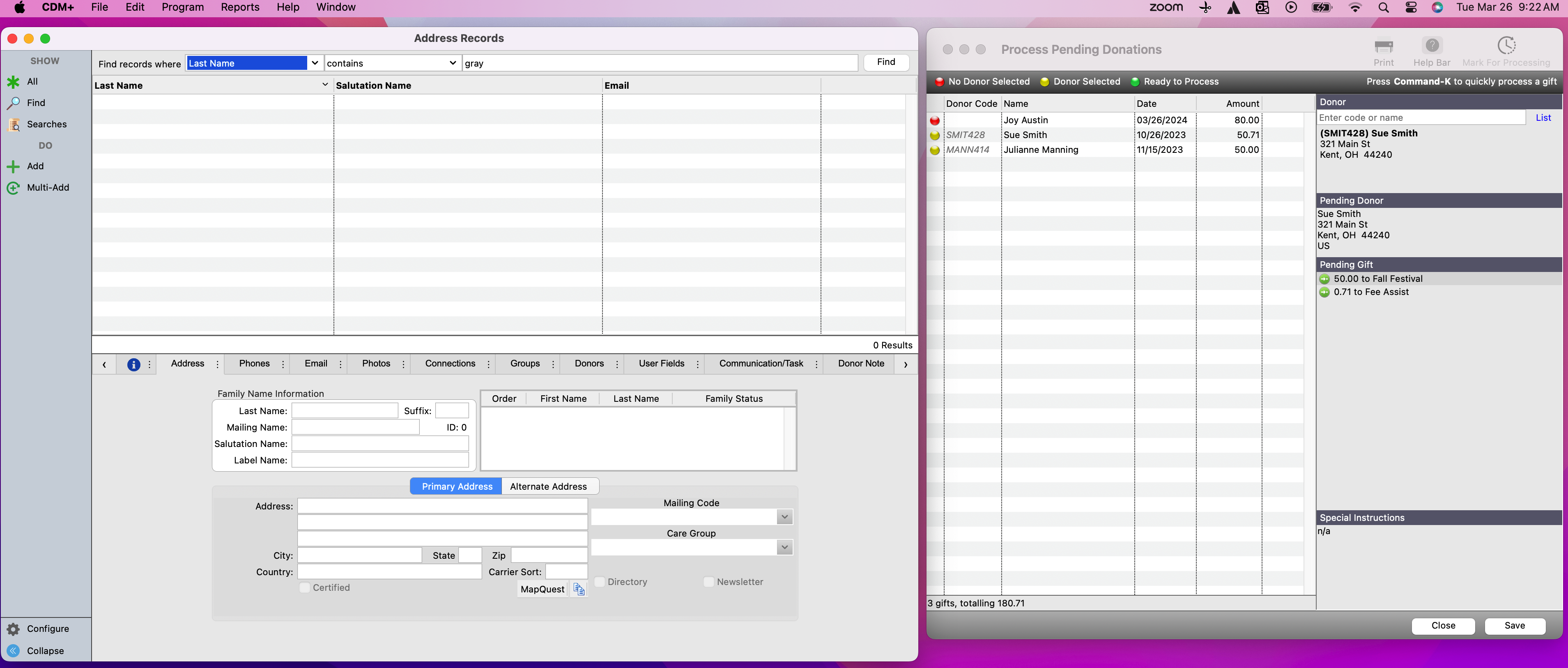
When the Process Pending Donation window opens, move it over to the right of your screen.
-
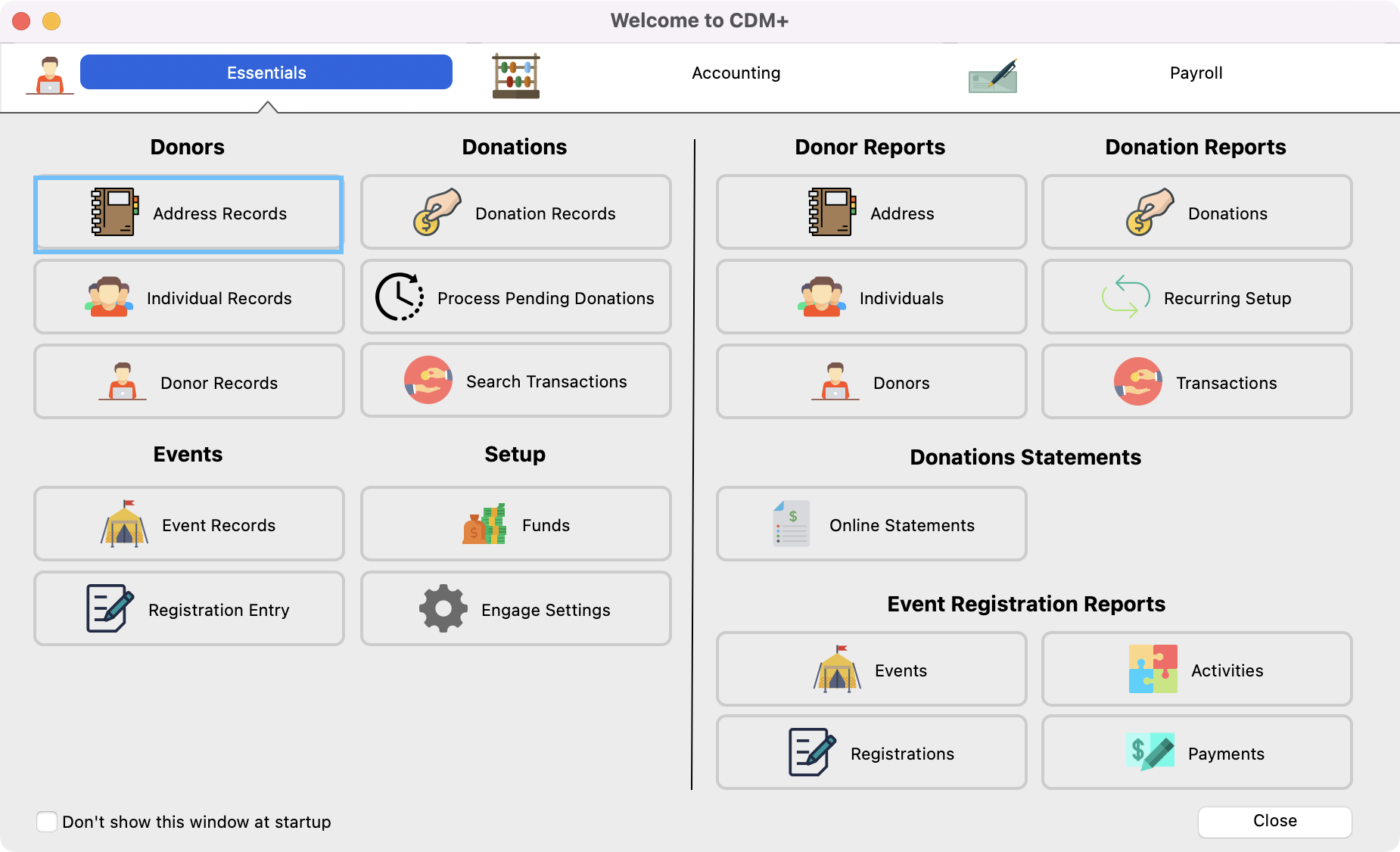
On the Welcome to CDM+ window, click Address Records.
-
When the window opens, move it over to the left of your screen.
-
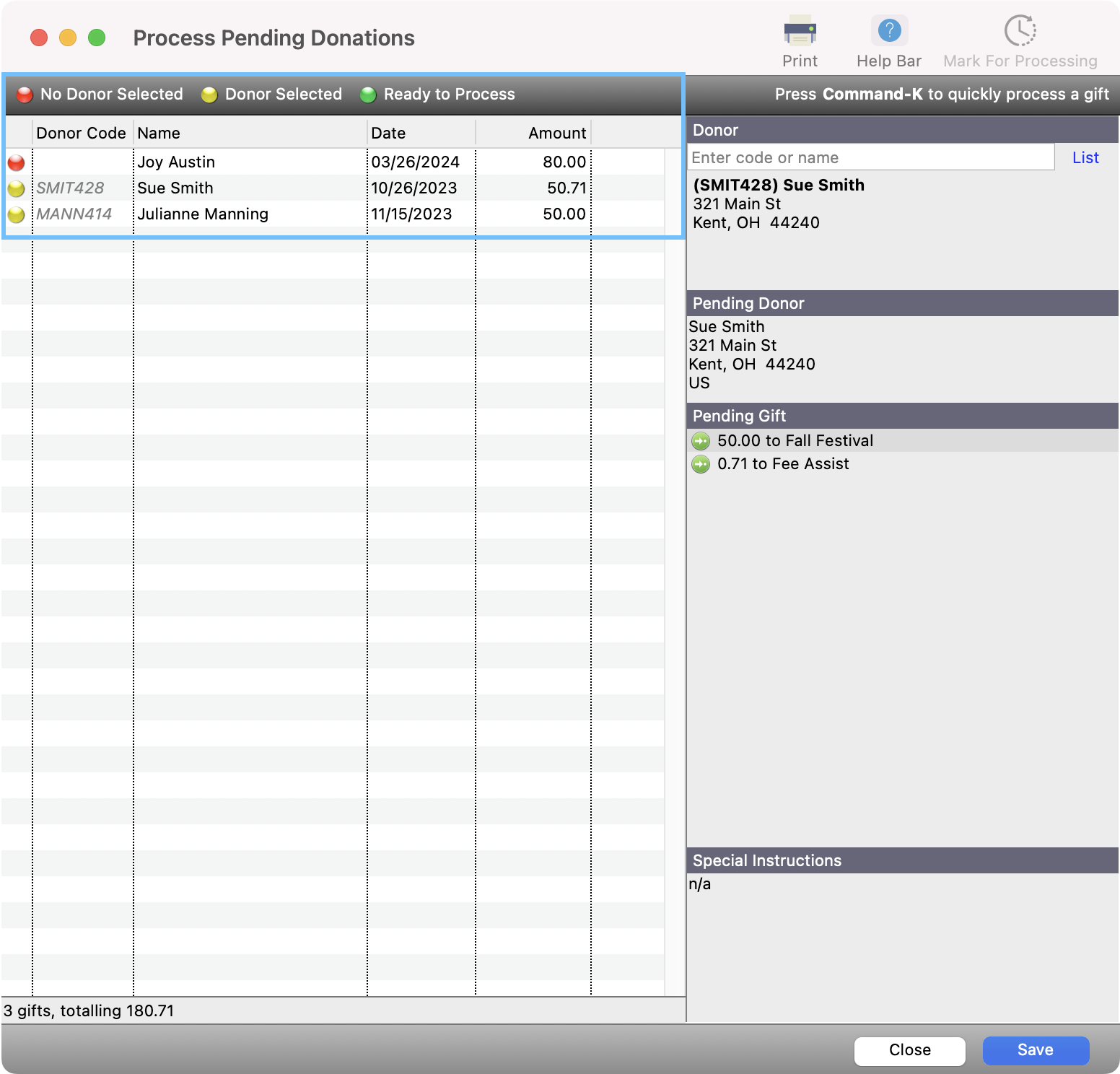
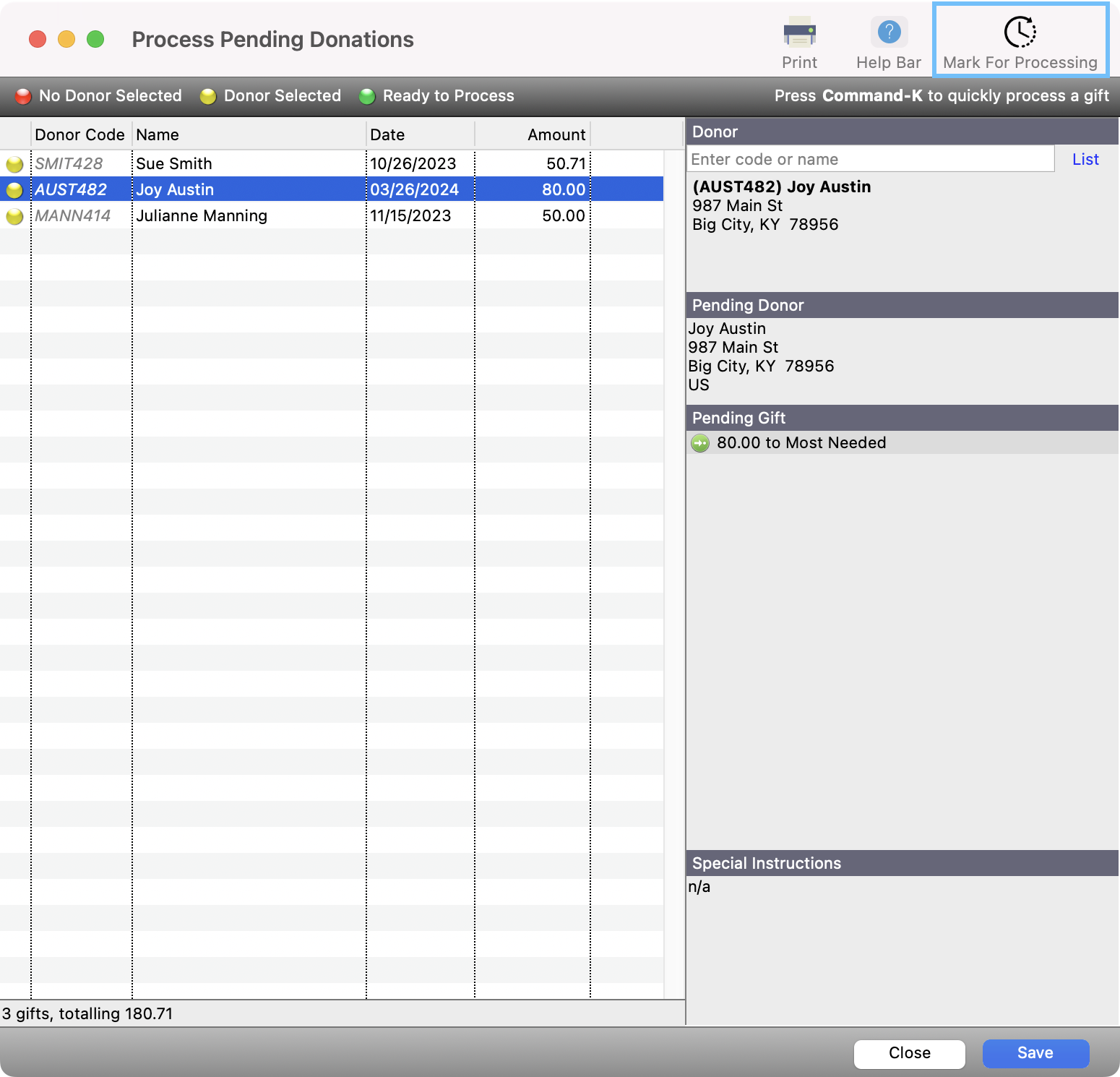
In the Process Pending Donation window, you will then see a window that will list all of your recent donations where someone has given as a guest. You will see a dot next to each donation record that represents a different status.
-
No Donor Record Selected (red dot)
-
Donor Record Selected (yellow dot)
-
Ready to Process (green dot)
Initially, all donations in this list will either have a red or yellow dot. CDM+ will attempt to match an incoming gift to an existing Donor Record in CDM+. If it can, that gift will have a yellow dot. If it cannot, the gift will have a red dot.
-
-
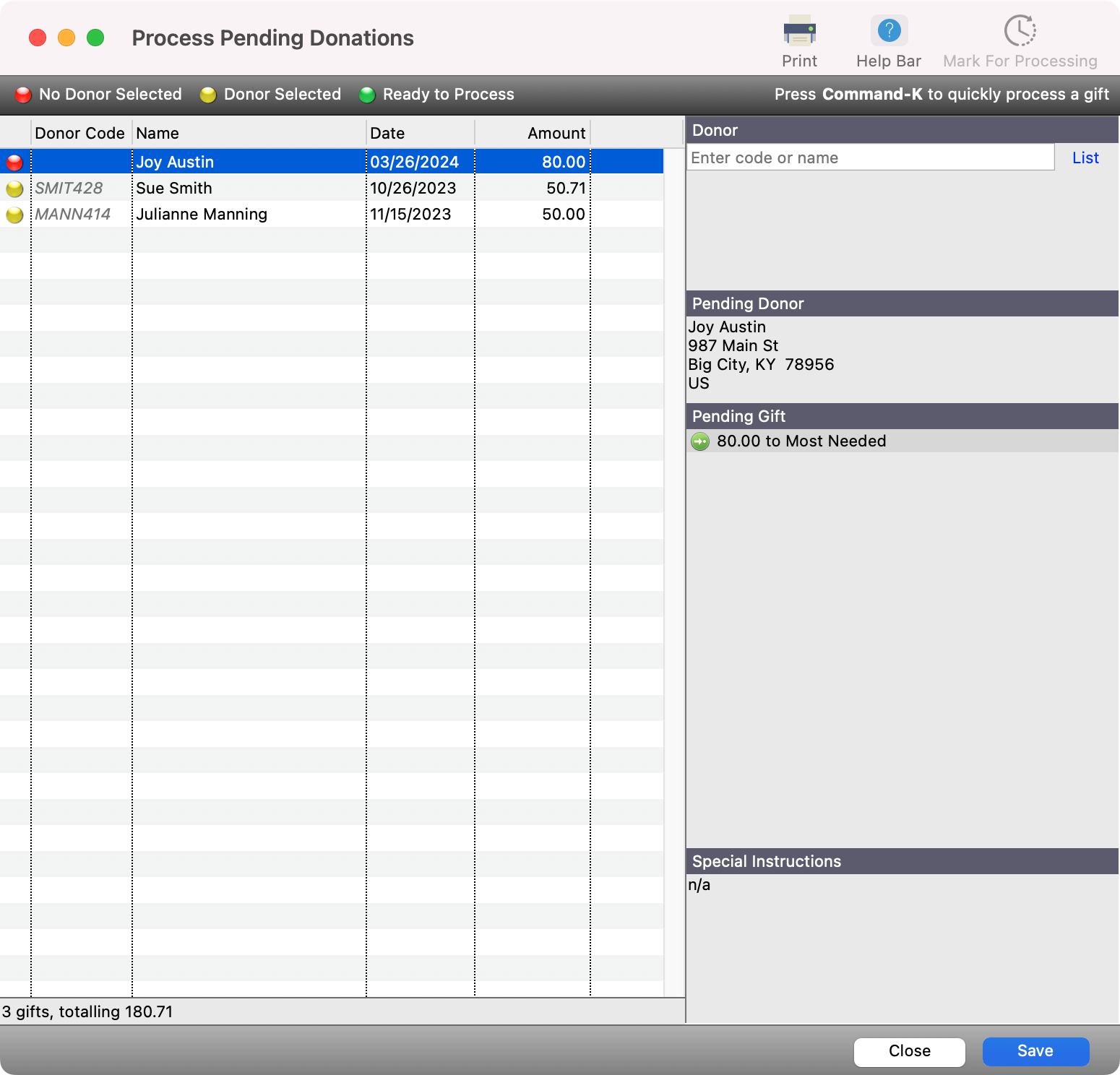
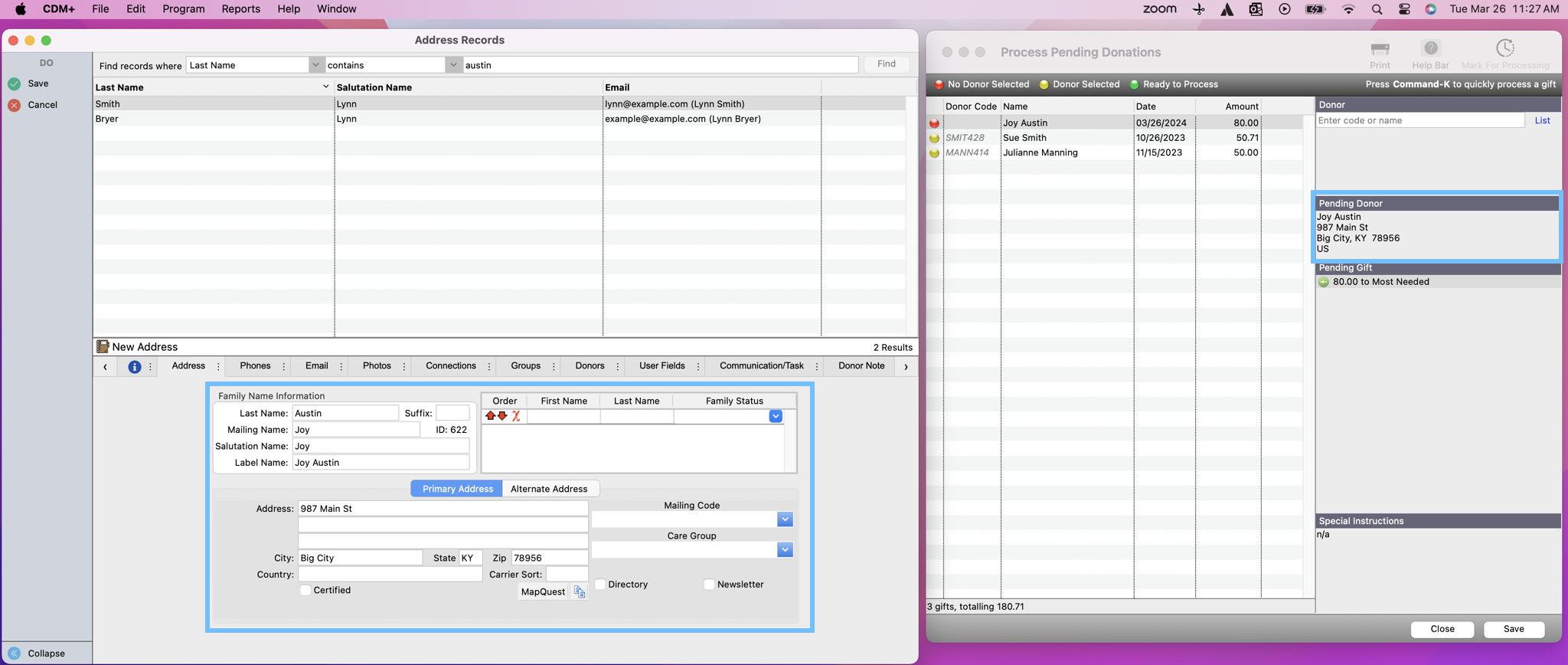
Click on the first donation with a red dot. You will see details about the gift, including the donor’s full name and address.
-
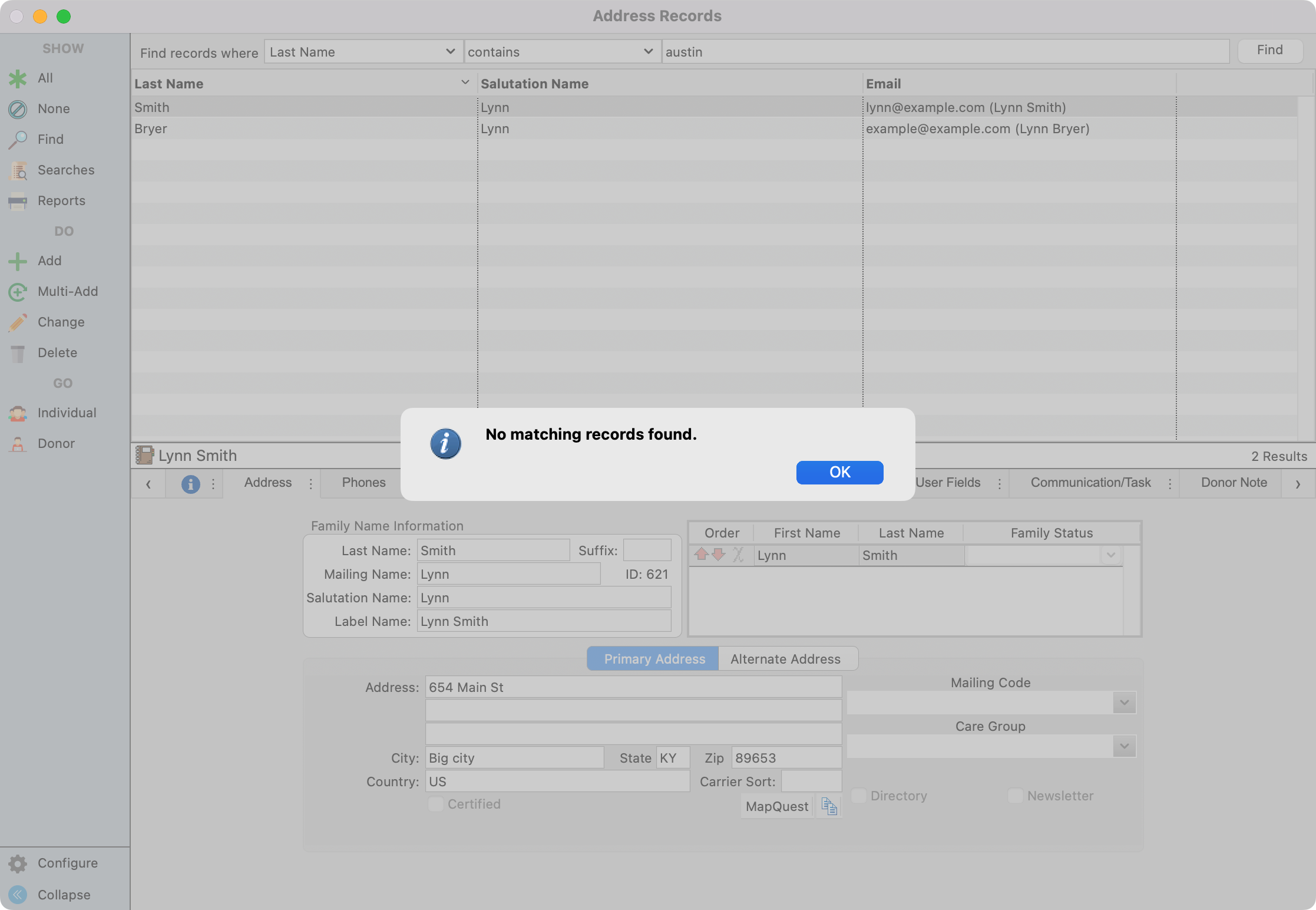
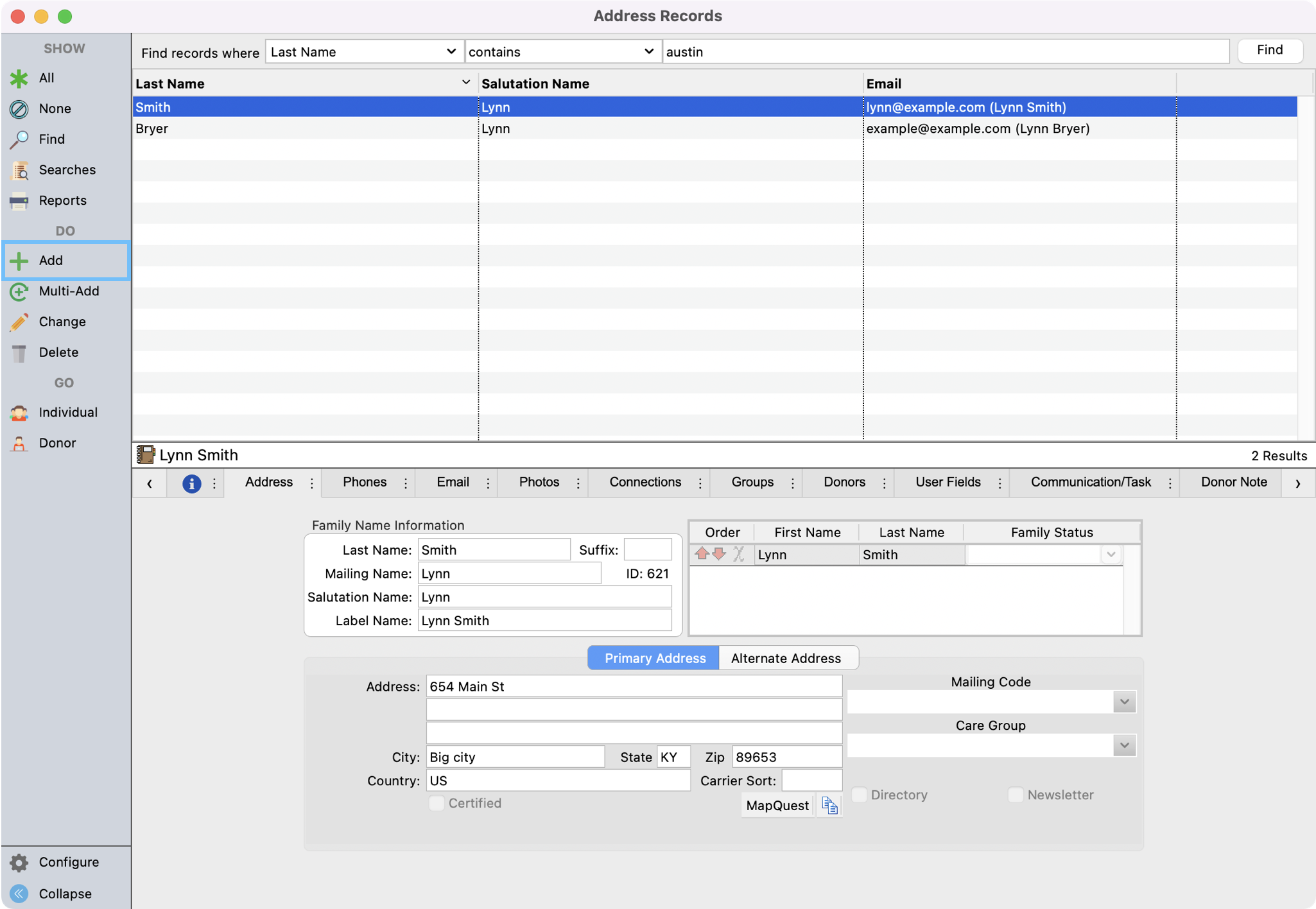
On the Address Records window, setup a find by Last Name → contains → last name of the donor to make sure they are not in CDM+. If they are not, a pop-up window will appear saying no record can be found.
-
Click Add on the left sidebar.
-
Enter the donor’s information as shown in the Process Pending Donations window.
-
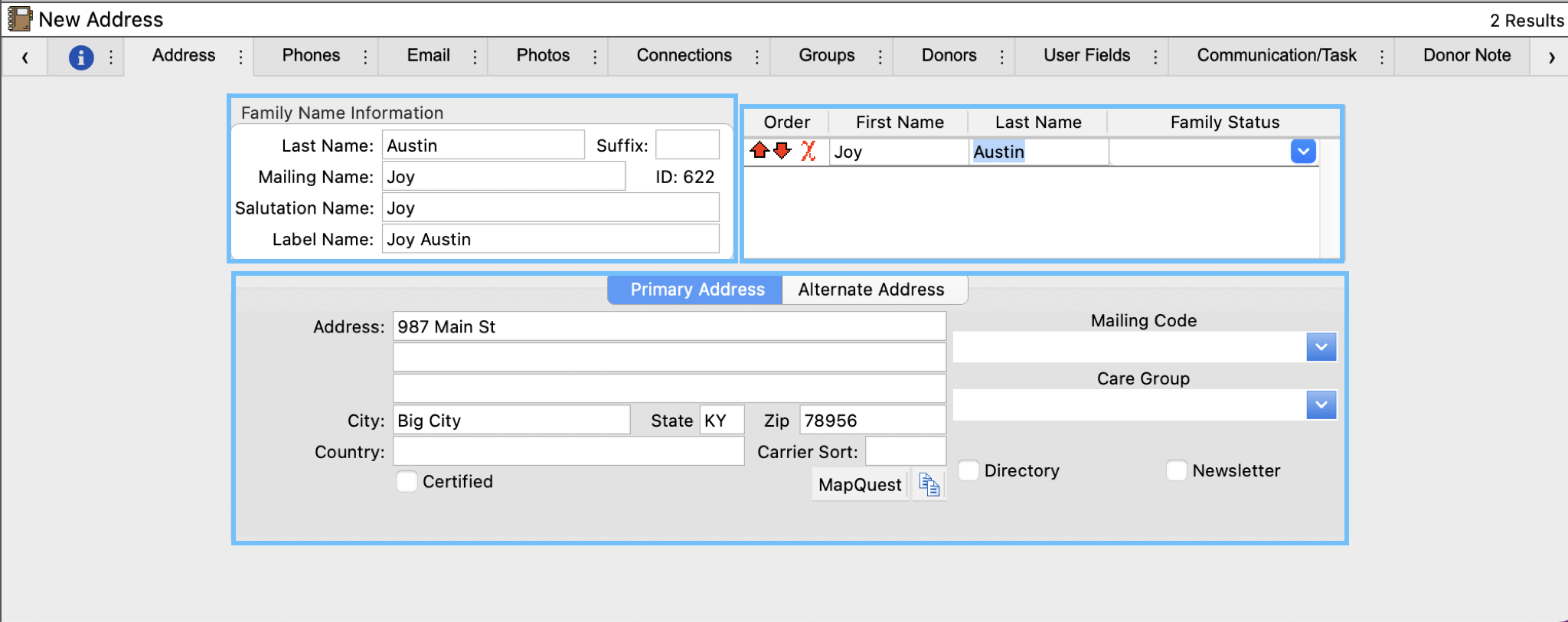
Enter in the donor’s Family Name Information - make sure to fill in the Mailing Name and Salutation Name fields with the first name of the donor. The Mailing name is the more formal name (Robert) while the Salutation field is more informal (Bob).
-
Enter the donor’s first name in the “Family Status” box, and then hit tab on your keyboard to automatically populate the last name. Please note this is a very important step as this is what will create their Individual Record. You can list other individuals at this same address in this section as well, such as husband and wife.
-
Enter in their address information.
-
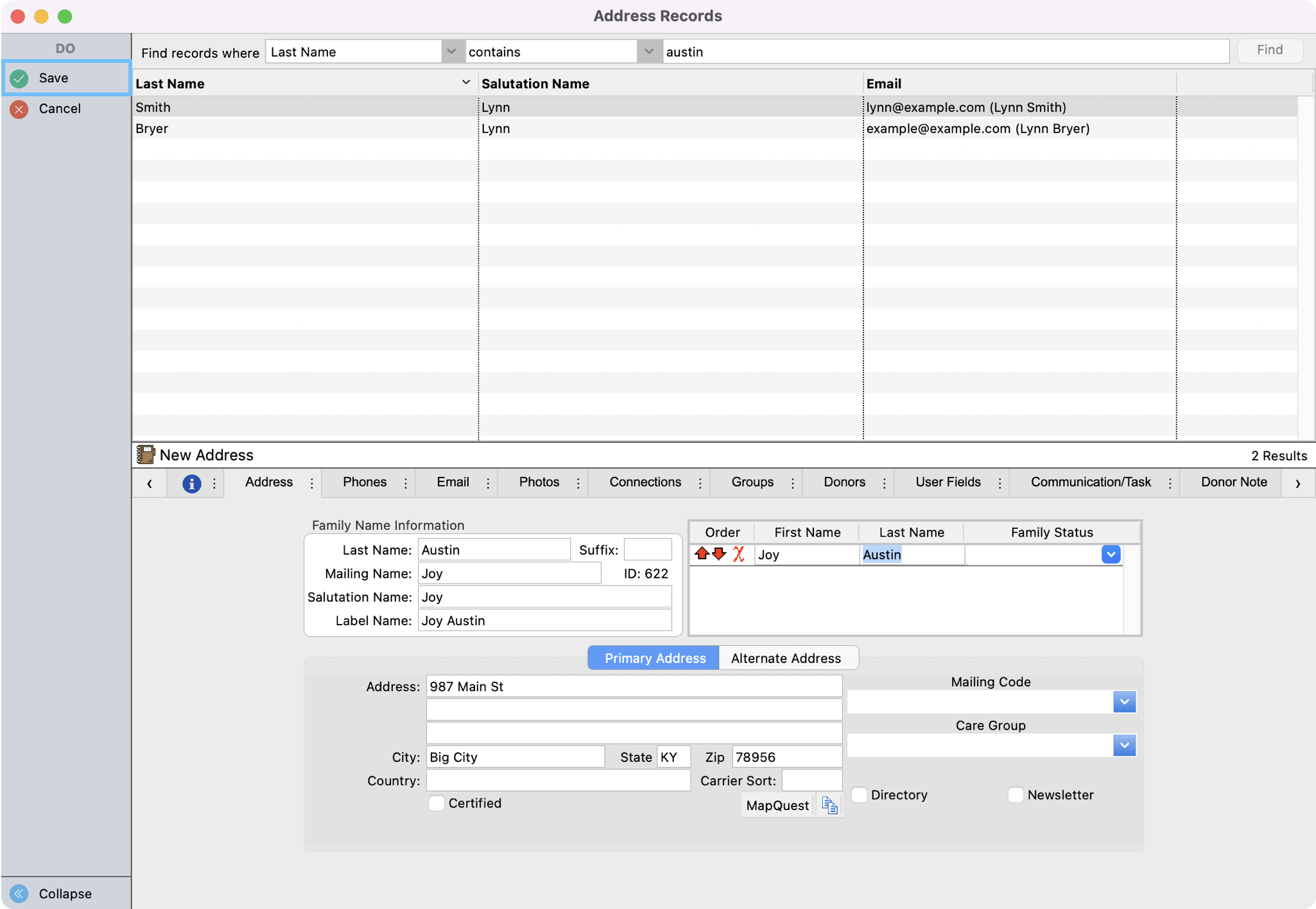
Click Save in the left sidebar.
-
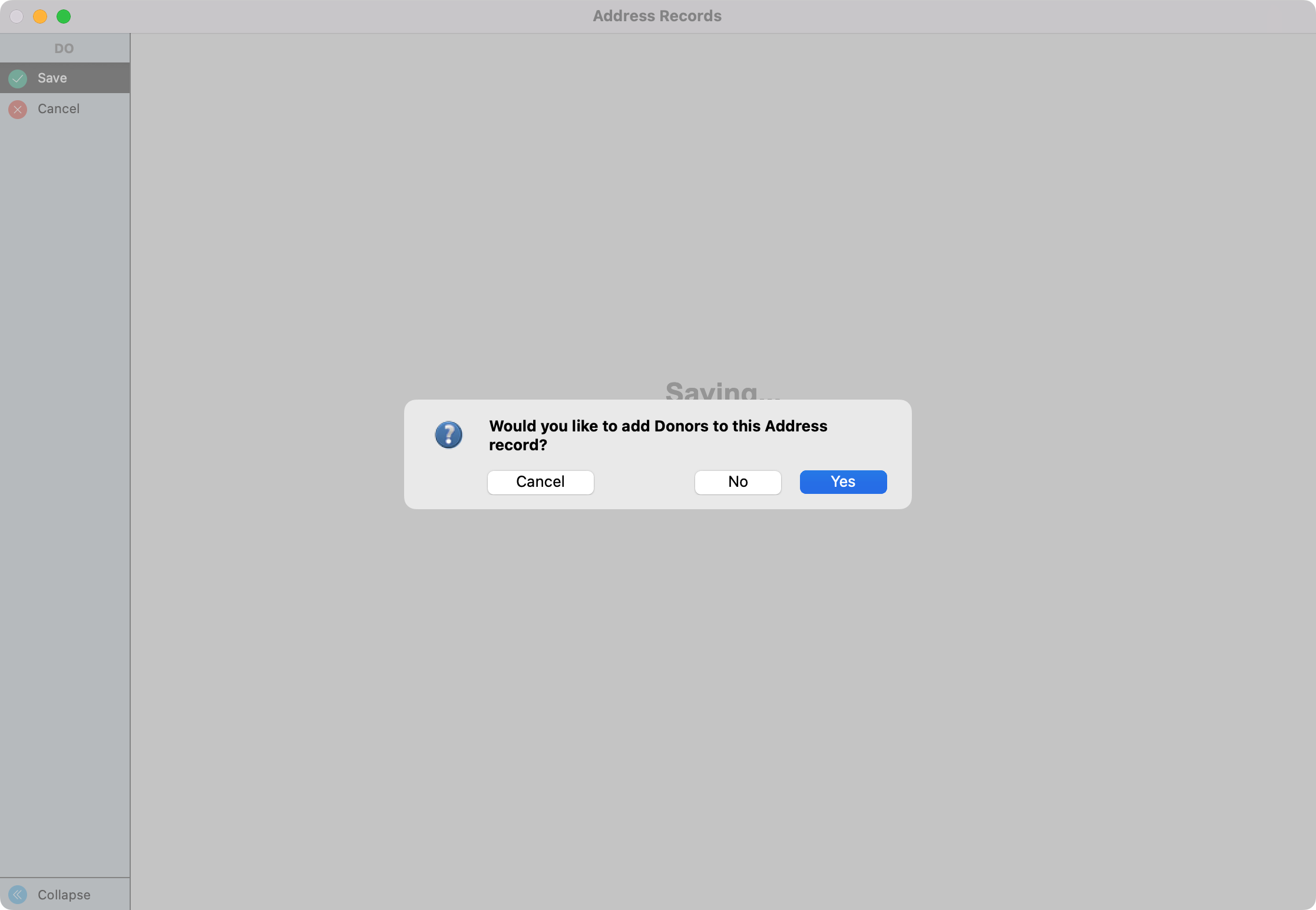
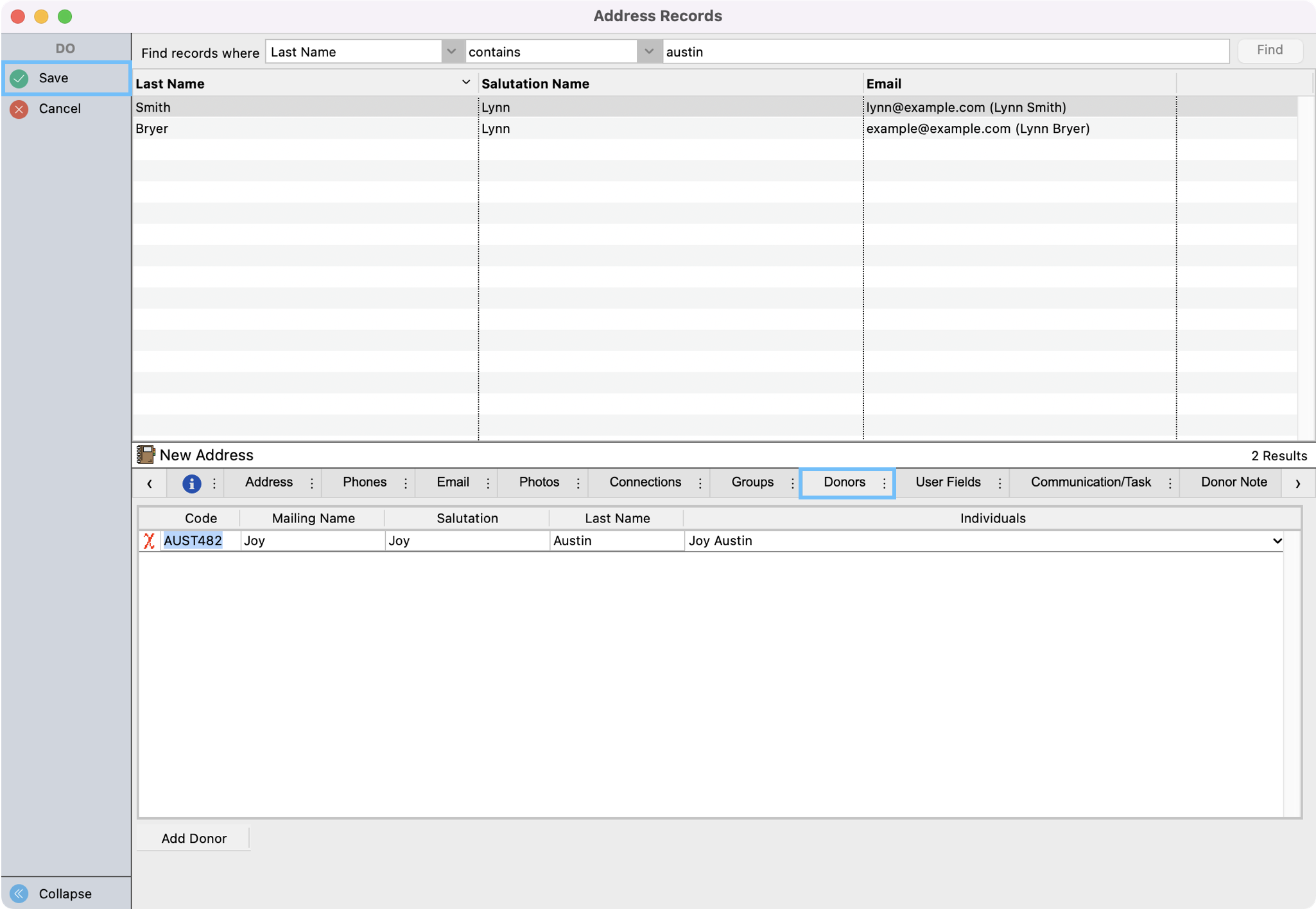
You will receive a popup prompt, asking if you want to add Donor Records - click Yes.
-
Click Save in the left sidebar.
-
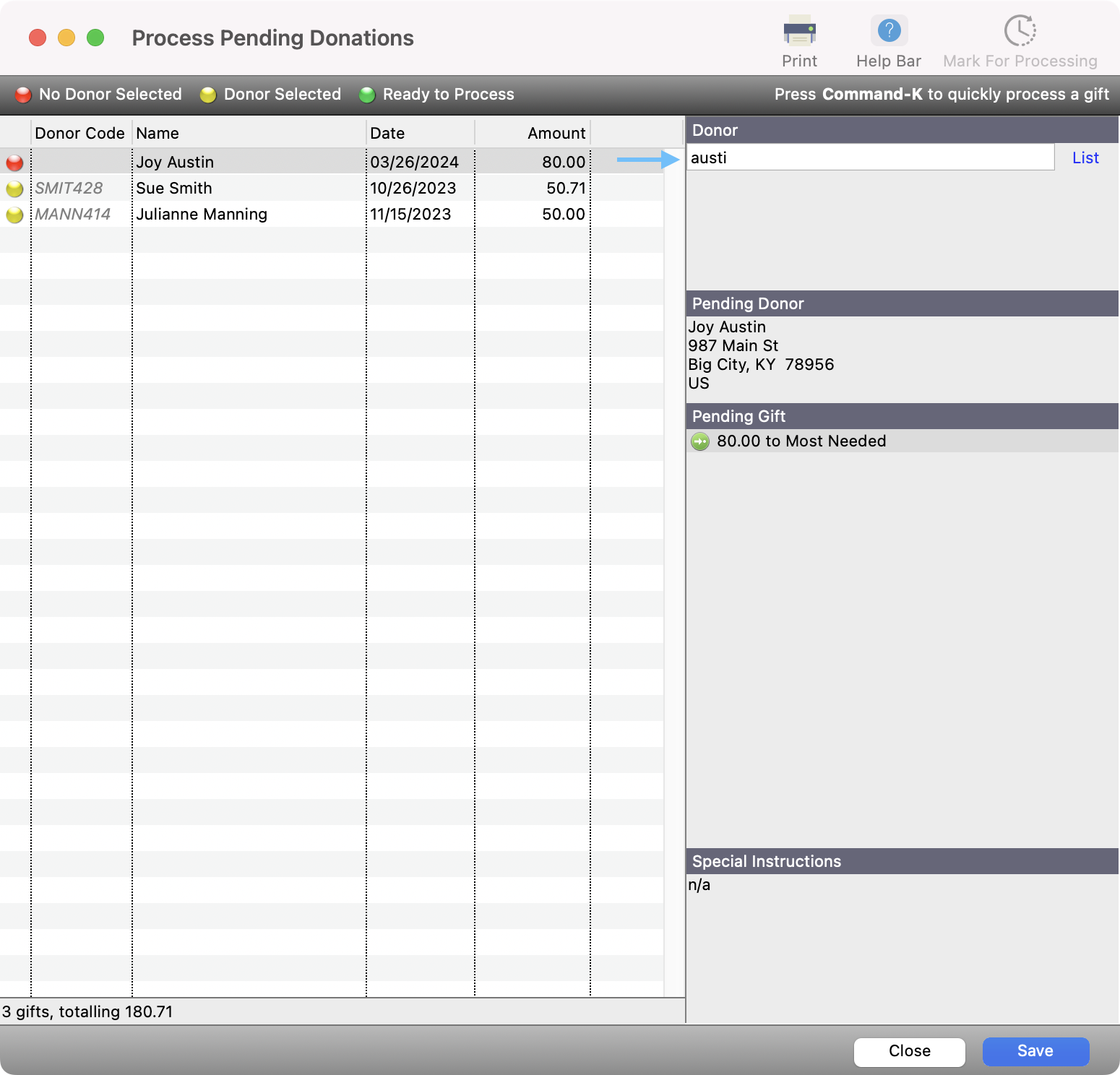
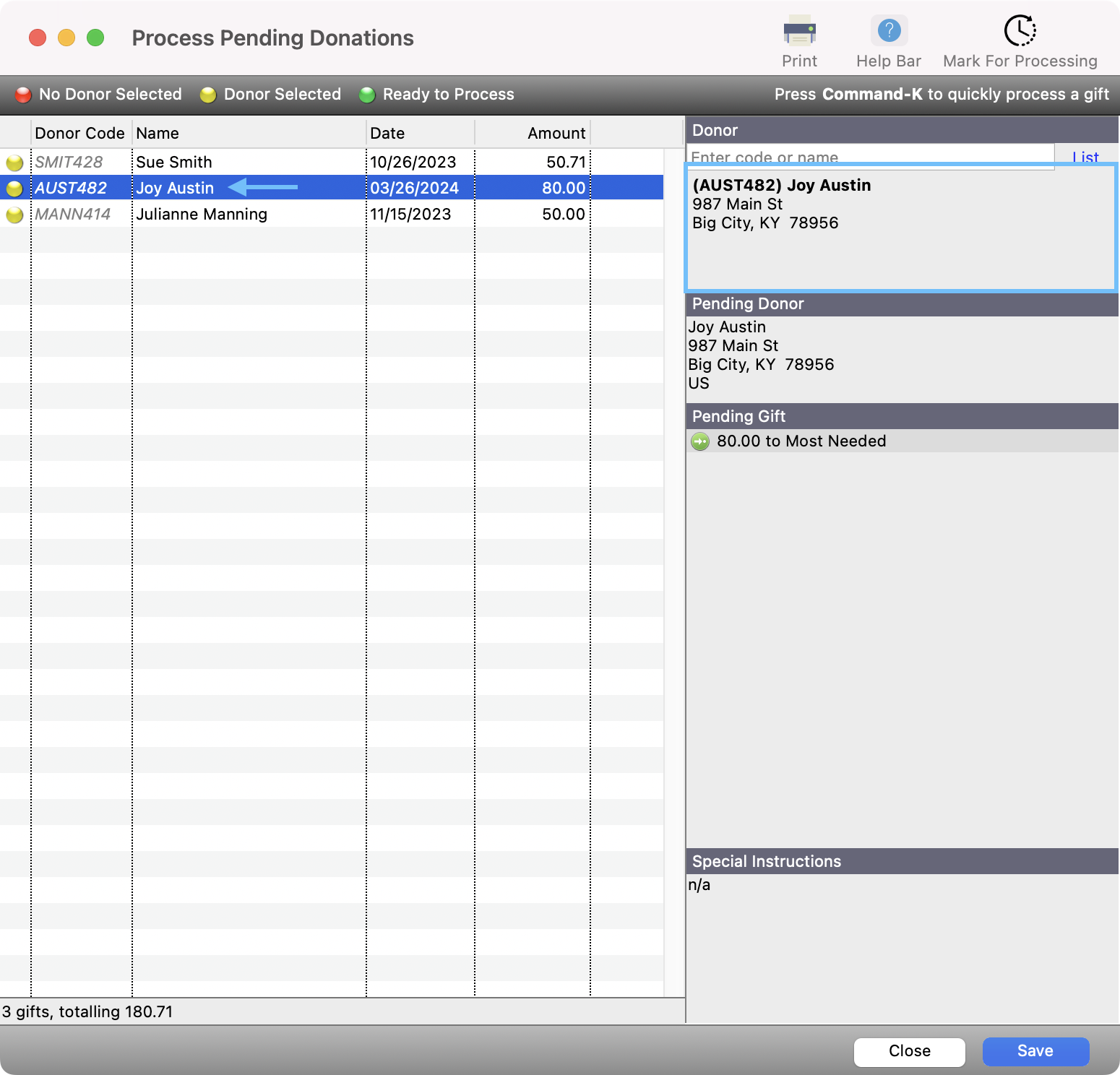
Back on the Process Pending Donations window, under the Donor search field, type the donor’s last name, but leave off the last letter. Then, hit tab on your keyboard. If they are the only donor with that last name, the system will automatically populate that Donor. If multiple donors have that last name, (like Smith,) a list of potential donors will appear. Double click on the correct record. The red dot will then turn to yellow.
-
Click on the record with the yellow dot and then click on Mark for Processing at the top of the window. The yellow dot will then turn green.
-
Once you have marked all the donations you want to process, simply click on Save at the bottom right of the Process Pending Donations queue. All of these donation records will now show up in your reports.